Agents Overview
Learn how to create and configure your AI voice agents in ScaleTalk.
Agents Overview
Agents are the core of the ScaleTalk platform. They define the personality, knowledge, and capabilities of your AI voice agents.
Viewing Your Agents
Navigate to Agents in the sidebar to see all your voice agents.
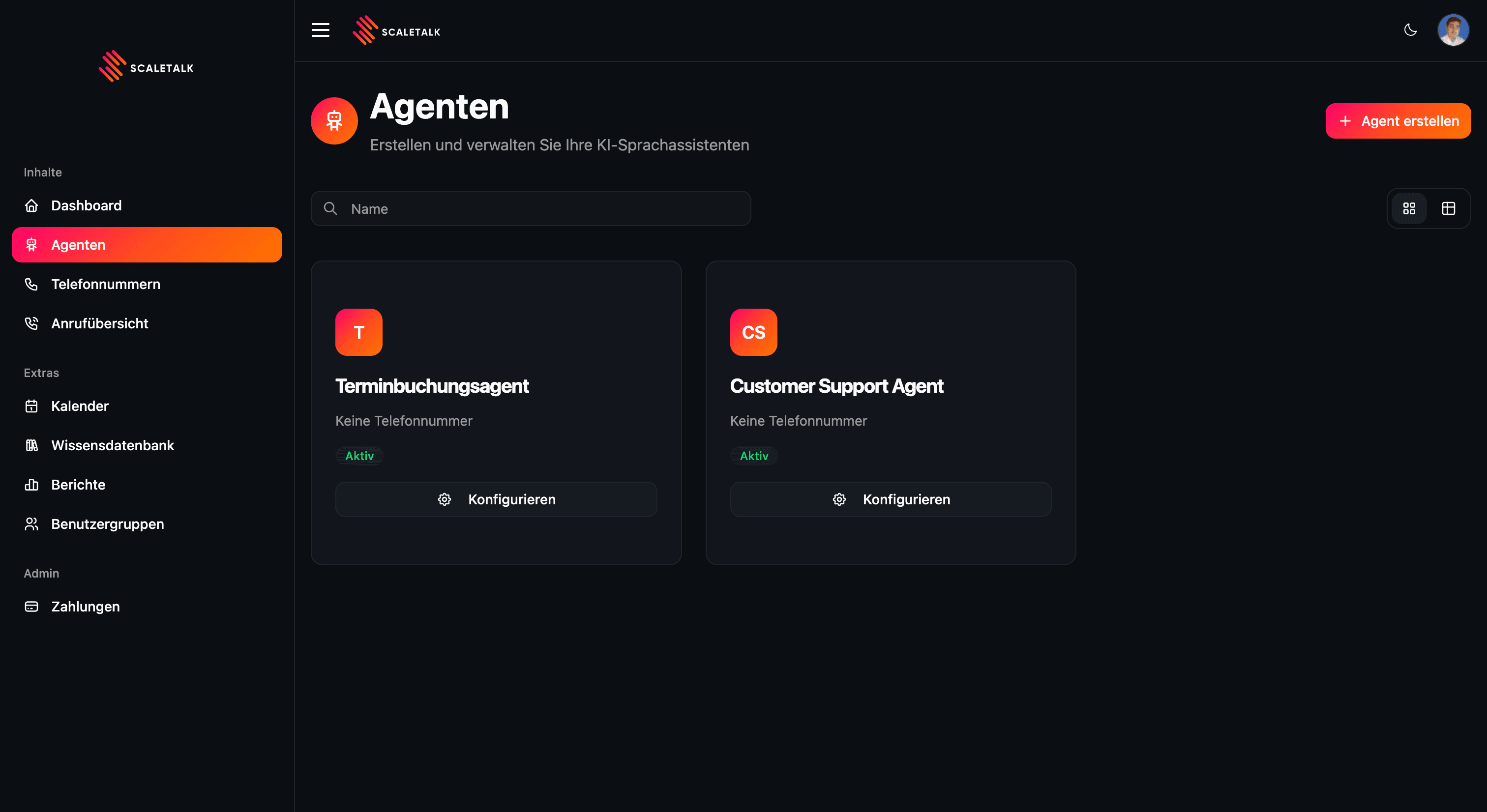
From this page you can:
- View all your agents
- See which agents are active
- Create new agents
- Edit existing configurations
Creating an Agent
To create a new agent:
- Click the Create Agent button
- Choose from available templates
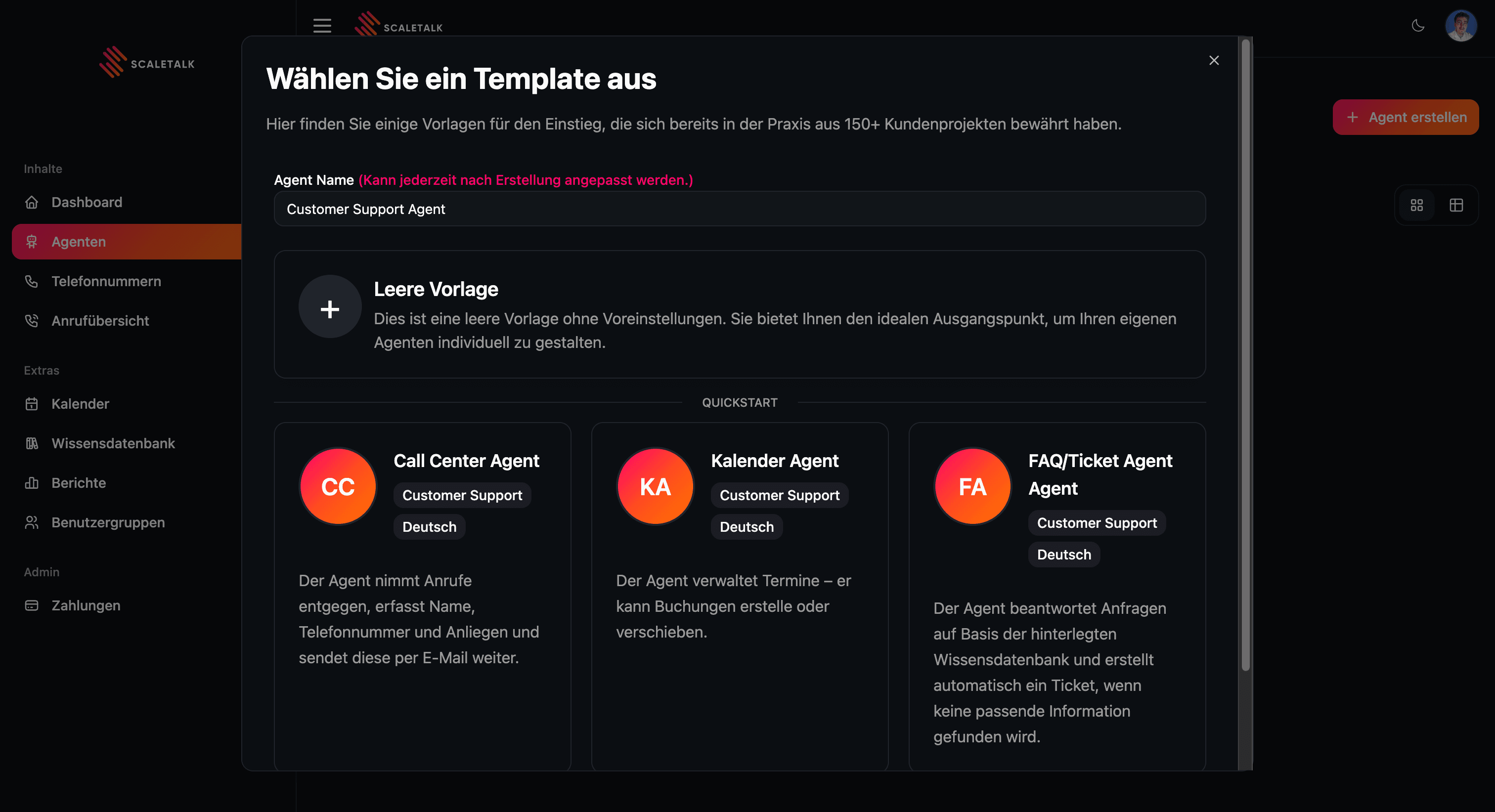
Available Templates
| Template | Best For |
|---|---|
| Blank Template | Starting from scratch with full customization |
| Call Center Agent | Customer support and general inquiries |
| Calendar Agent | Scheduling-focused conversations |
| FAQ/Ticket Agent | Answering queries based on the knowledge base |
Configuration Tabs
After creating an agent, you'll see the configuration page with multiple tabs:
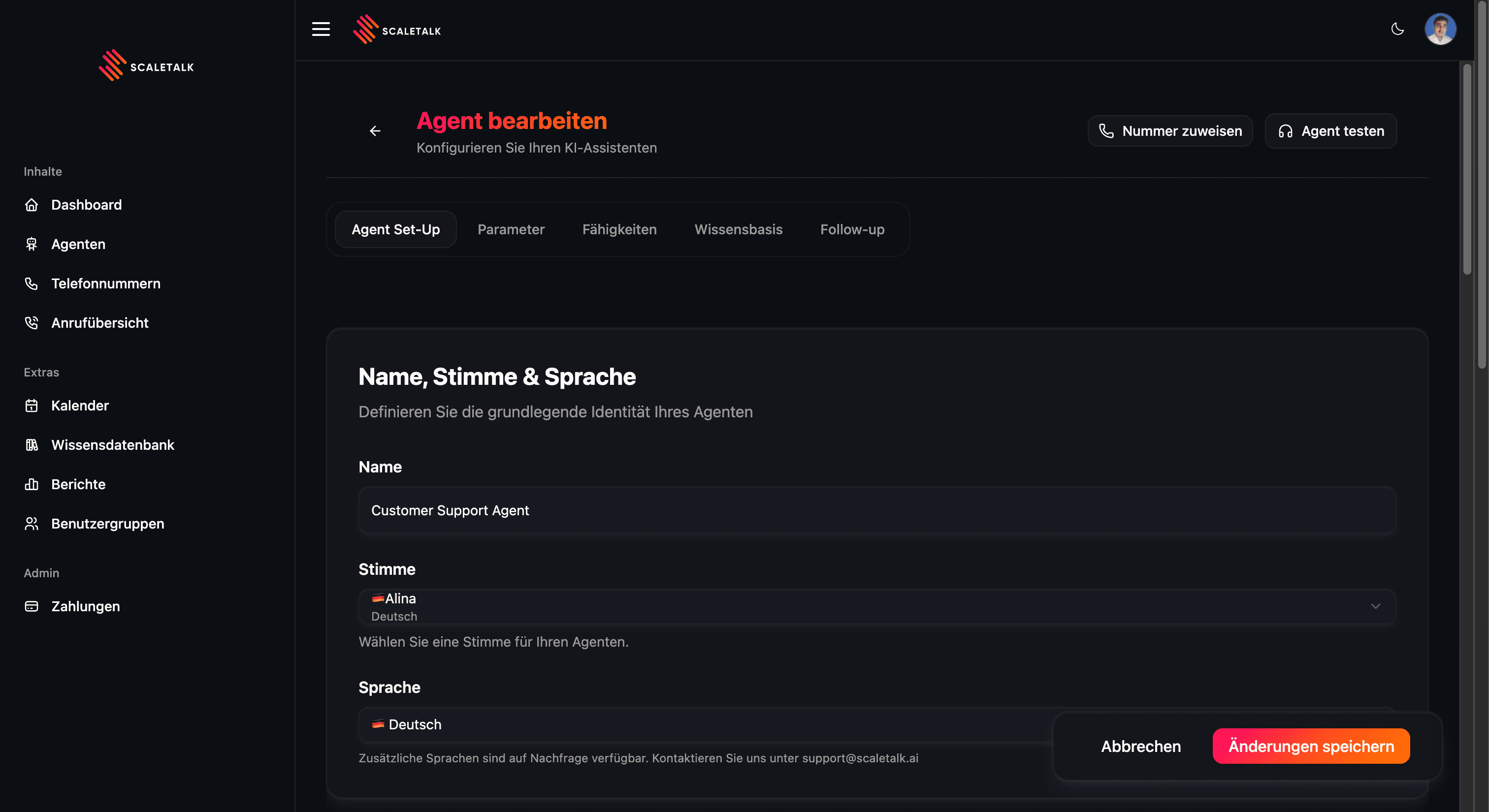
The agent configuration is divided into several tabs to help you organize your settings:
- Agent Set-Up: Define the agent's identity, voice, language, and core personality.
- Parameters: Fine-tune voice settings, recording, and time limits.
- Capabilities: Enable features like Calendar Tools, Call Transfer, or API Request.
- Knowledge Base: Upload documents or select them from your Knowledge Base to give your agent specific knowledge. You can also have your website crawled there.
- Follow-up: Configure what happens after a call, such as sending emails or webhooks.
- Outbound: Start outbound calls with your agent. (Coming soon)
Explore the sections below to learn more about each configuration area.
Quick Configuration Guide
1. Configure Agent Set-Up (Required)
Start by configuring the basics:
- Give your agent a name
- Select a voice and language
- Write your system prompt and start message
2. Expand the Knowledge Base (Optional)
Enhance your agent with:
- Company documents (PDF, DOCX)
- FAQ and knowledge base articles
- Documents from your Knowledge Base (you can also crawl website content there)
3. Enable Capabilities (Optional)
Add features like:
- Calendar Tools - Book appointments
- Call Transfer - Route to team members
- API Request - Connect to your systems
4. Configure Follow-up (Optional)
Set up post-call actions:
- Email summaries
- Webhook notifications
- CRM updates
Saving Changes
Changes are automatically saved as you configure your agent. You'll see a "Saved" indicator when the changes have been applied.