Exporting Data
Export your call analytics as a CSV file for external reporting and analysis.
Exporting Data
The Reports page allows you to export your analytics data as a CSV file for use in spreadsheets, business intelligence tools, or compliance records.
How to Export
Click the Export button in the top-right corner of the Reports page, then select Download CSV from the dropdown menu.
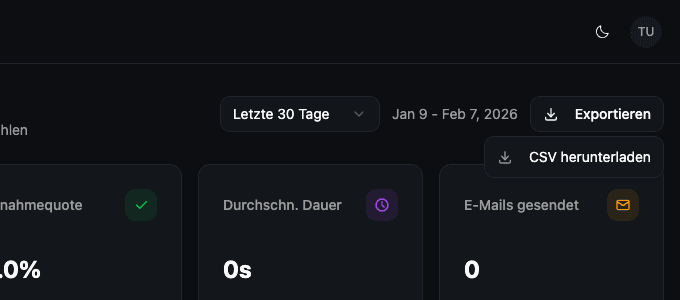
The exported file covers the currently selected date range and includes data for the active user group (if applicable).
CSV Contents
The exported CSV file contains the following sections:
| Section | Description |
|---|---|
| Header | Report title, date range, and generation timestamp |
| Summary | All KPI metrics (total calls, answer rate, failed rate, no-answer rate, durations, costs, emails) |
| Calls by Day | Daily call counts |
| Calls by Status | Breakdown by call outcome (completed, answered, failed, no-answer) |
| Duration Distribution | Call counts per duration bucket (0-30s, 30s-1m, 1-2m, 2-5m, 5m+) |
| Agent Performance | Per-agent call count, success rate, and average duration |
| Calls by Hour | Hourly call volume (00:00 through 23:00) |
File Naming
The downloaded file follows this naming pattern:
scaletalk-report-YYYY-MM-DD-to-YYYY-MM-DD.csvFor example: scaletalk-report-2026-01-09-to-2026-02-07.csv
Localization
The CSV content is generated in your current interface language (English or German). Column headers and labels match the language you see in the application.
Audit Logging
Every CSV export is logged as a data export event for GDPR compliance. The audit log records the export format, date range, record count, and which data types were included.