Managing Groups
Create, edit, and delete user groups to organize your team collaboration.
Managing Groups
This page covers how to create new groups, navigate the groups list, and manage group lifecycle operations like deleting groups or leaving groups you belong to.
Viewing Your Groups
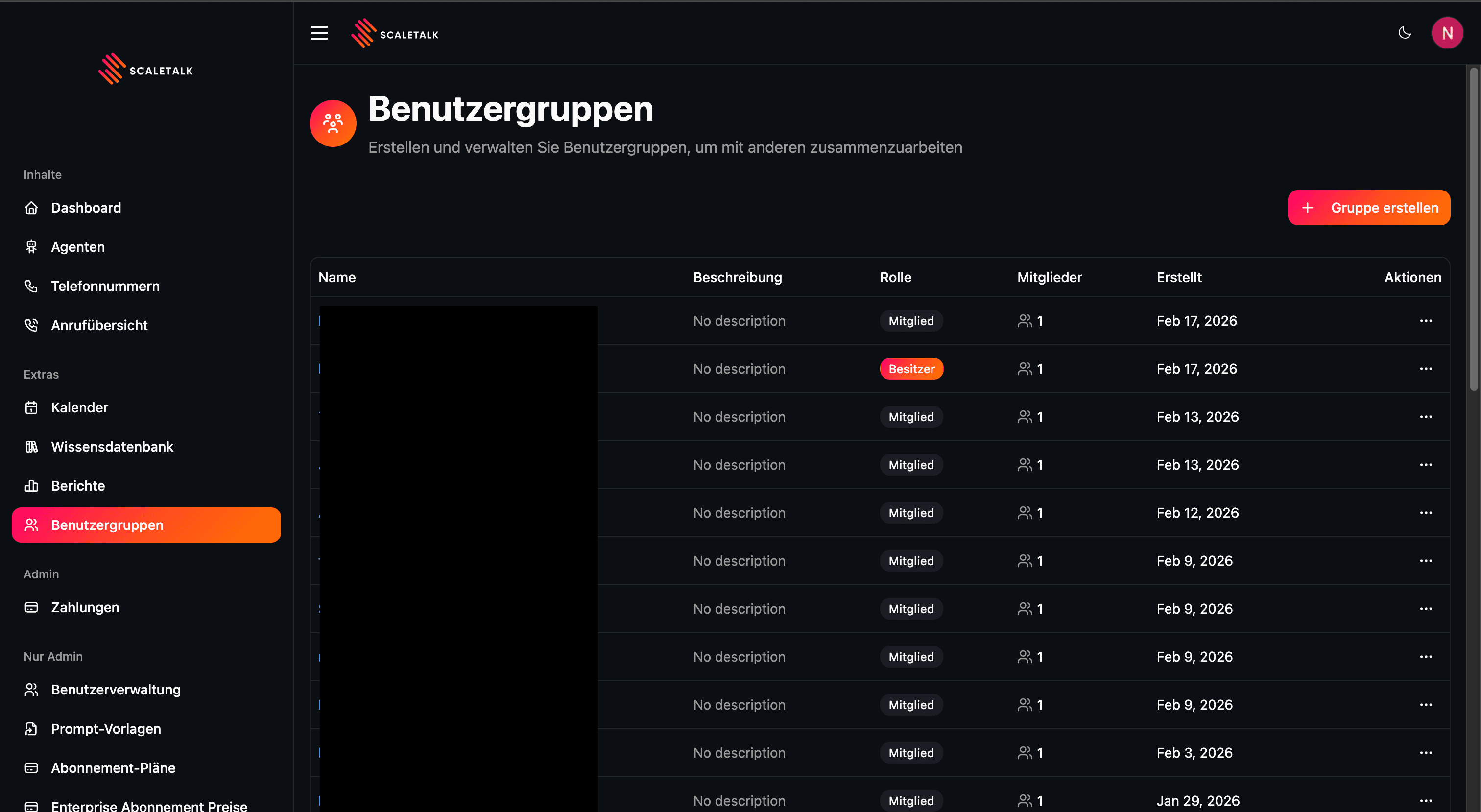
Navigate to User Groups in the sidebar to see all groups you own or belong to.
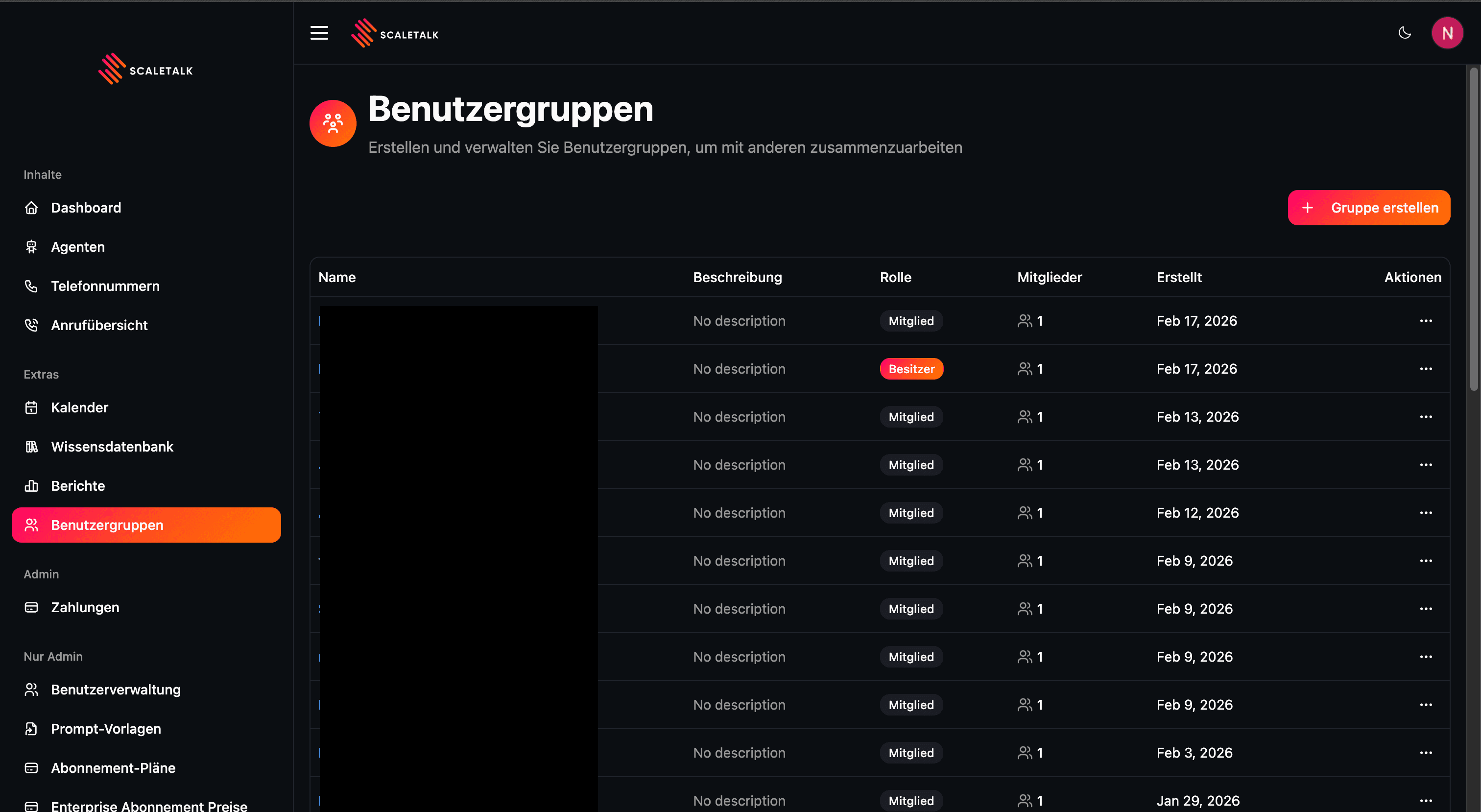
The groups table displays the following columns:
| Column | Description |
|---|---|
| Name | The group name (click to open the detail page) |
| Description | A short description of the group's purpose |
| Role | Your role in the group: Owner or Member |
| Members | Total number of members in the group |
| Created | The date the group was created |
| Actions | A dropdown menu with available actions |
Actions Menu
Click the three-dot menu on any group row to access:
- View Details - Open the group detail page
- Manage Calendars - Go directly to the shared calendars page
- Manage Agents - Go directly to the shared agents page
- Delete Group (owners only) - Permanently delete the group
- Leave Group (members only) - Remove yourself from the group
Creating a Group
- Click the Create Group button in the top-right corner of the User Groups page.
- Fill in the group details in the dialog that appears.
- Click Create Group to confirm.
| Field | Required | Description |
|---|---|---|
| Group Name | Yes | A name for your group (max 100 characters) |
| Description | No | An optional description of the group's purpose (max 500 characters) |
After creation, you are automatically redirected to the new group's detail page where you can start adding members and sharing resources.
Group Detail Page
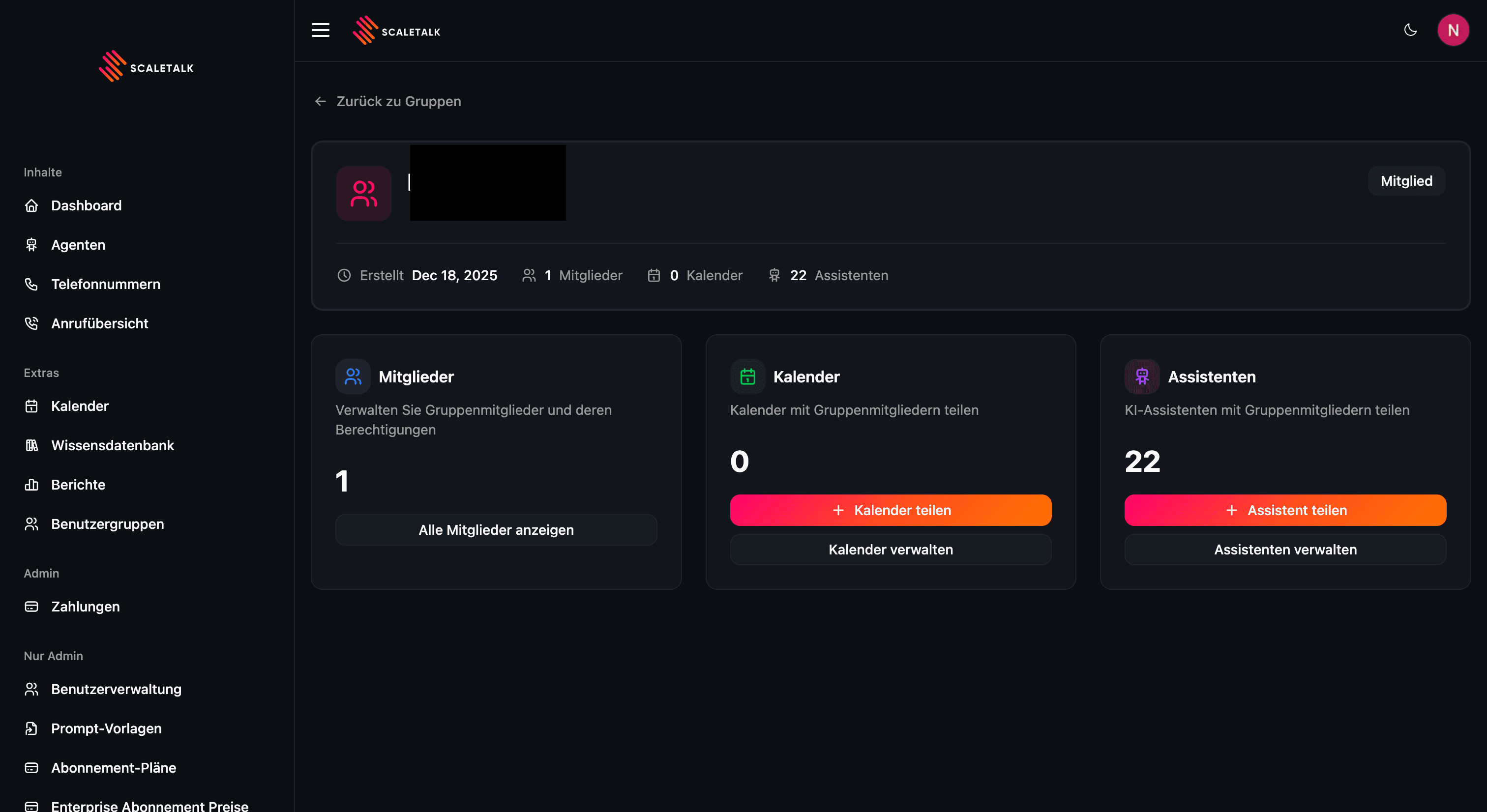
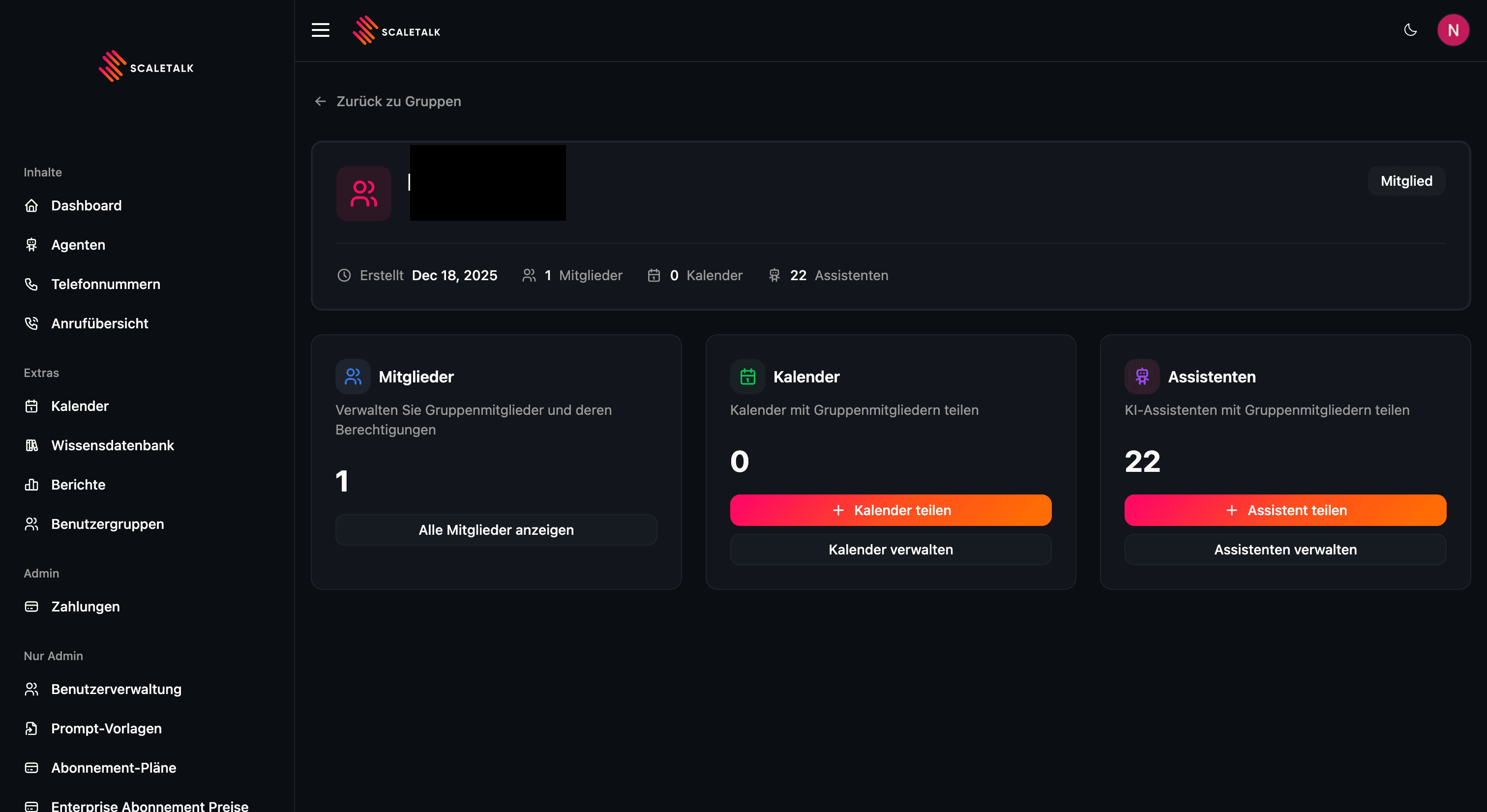
The group detail page provides an overview of the group and quick access to all management functions.
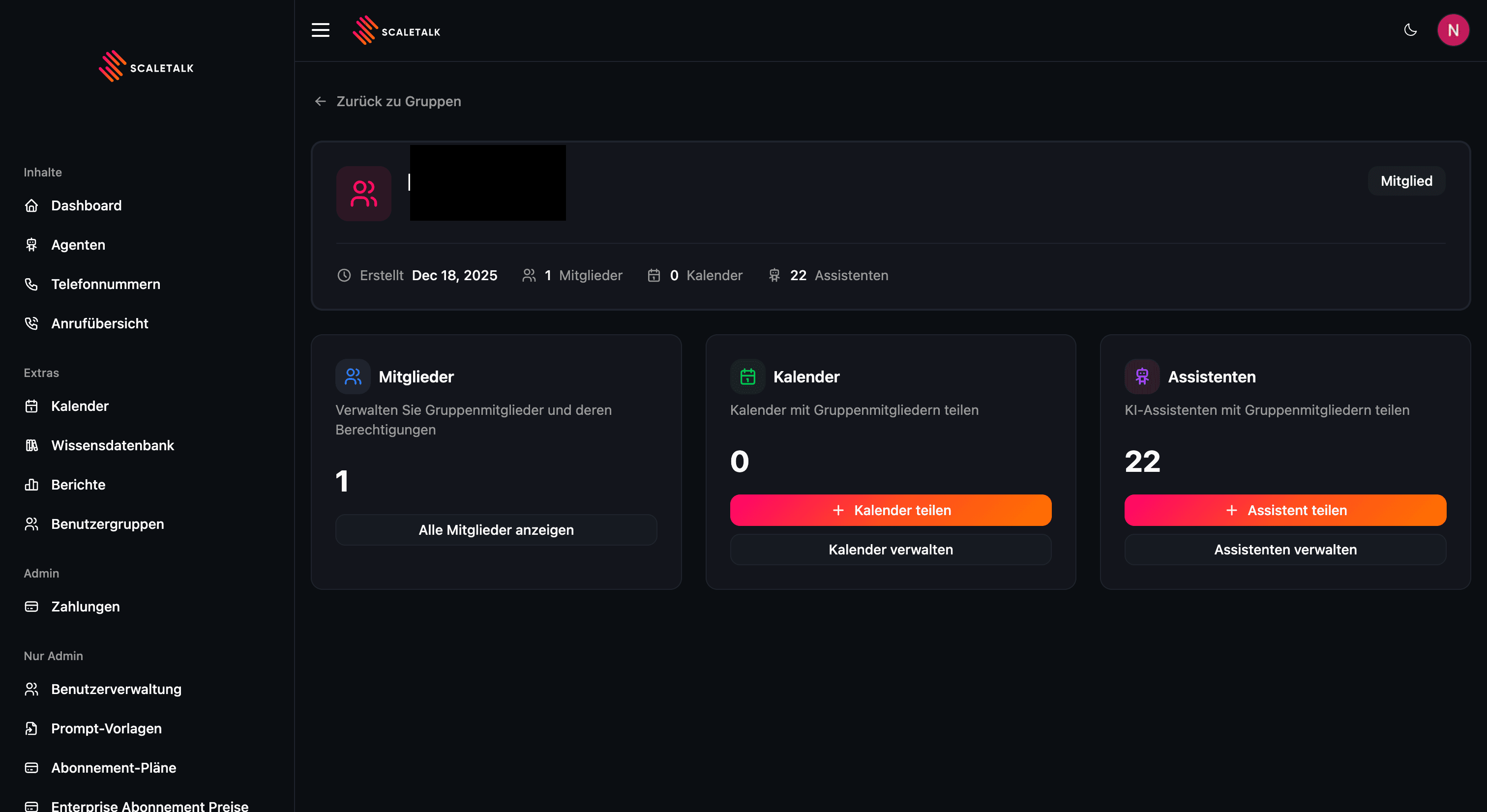
Header Card
The header card displays:
- Group name and description
- Role badge showing whether you are the Owner or a Member
- Metadata row with creation date, member count, calendar count, and agent count
Management Cards
Three cards provide quick access to each resource type:
| Card | Description | Owner Actions |
|---|---|---|
| Members | Shows member count and links to the full members page | Add Member button |
| Calendars | Shows calendar count and links to the calendars page | Share Calendar button |
| Agents | Shows agent count and links to the agents page | Share Agent button |
Sharing Calendars
From the group detail page, click Share Calendar to open the sharing dialog. You can select one of your connected calendars and configure the access level.
| Permission | Description |
|---|---|
| Read-only (recommended) | Members can view events but cannot make changes |
| Full Access | Members can create, edit, and delete events in your calendar |
Warning
Granting full access allows group members to modify events in your calendar. Use read-only access unless members need to create or edit events.
You must confirm GDPR consent before sharing. The calendar then appears on the group's Calendars page.
Sharing Agents
From the group detail page, click Share Agent to open the sharing dialog. You can select one of your active AI agents and configure permissions.
| Permission | Default | Description |
|---|---|---|
| Can Edit | Off | Members can modify the agent's configuration |
| Can Delete | Off | Members can delete the agent |
| Can View Metrics | On | Members can view the agent's call metrics |
You must confirm GDPR consent before sharing. The agent then appears on the group's Agents page.
Deleting a Group
Only the group owner can delete a group. Deleting a group:
- Removes all member associations
- Removes all shared calendar and agent links
- Cannot be undone
To delete a group, open the actions menu (three-dot icon) on the group row and select Delete Group. You will be asked to confirm before the group is permanently removed.
Leaving a Group
If you are a member (not the owner) of a group, you can leave at any time. Open the actions menu on the group row and select Leave Group. After leaving:
- You lose access to all shared calendars and agents in that group
- Your membership is removed immediately
- The group continues to exist for remaining members