User Groups
Organize your team with user groups to share calendars and AI agents collaboratively.
With User Groups you can organize team members and share resources such as calendars and AI agents — without having to share login credentials. This is especially useful when you want to give an external agency or an employee access to specific agents while remaining GDPR-compliant.
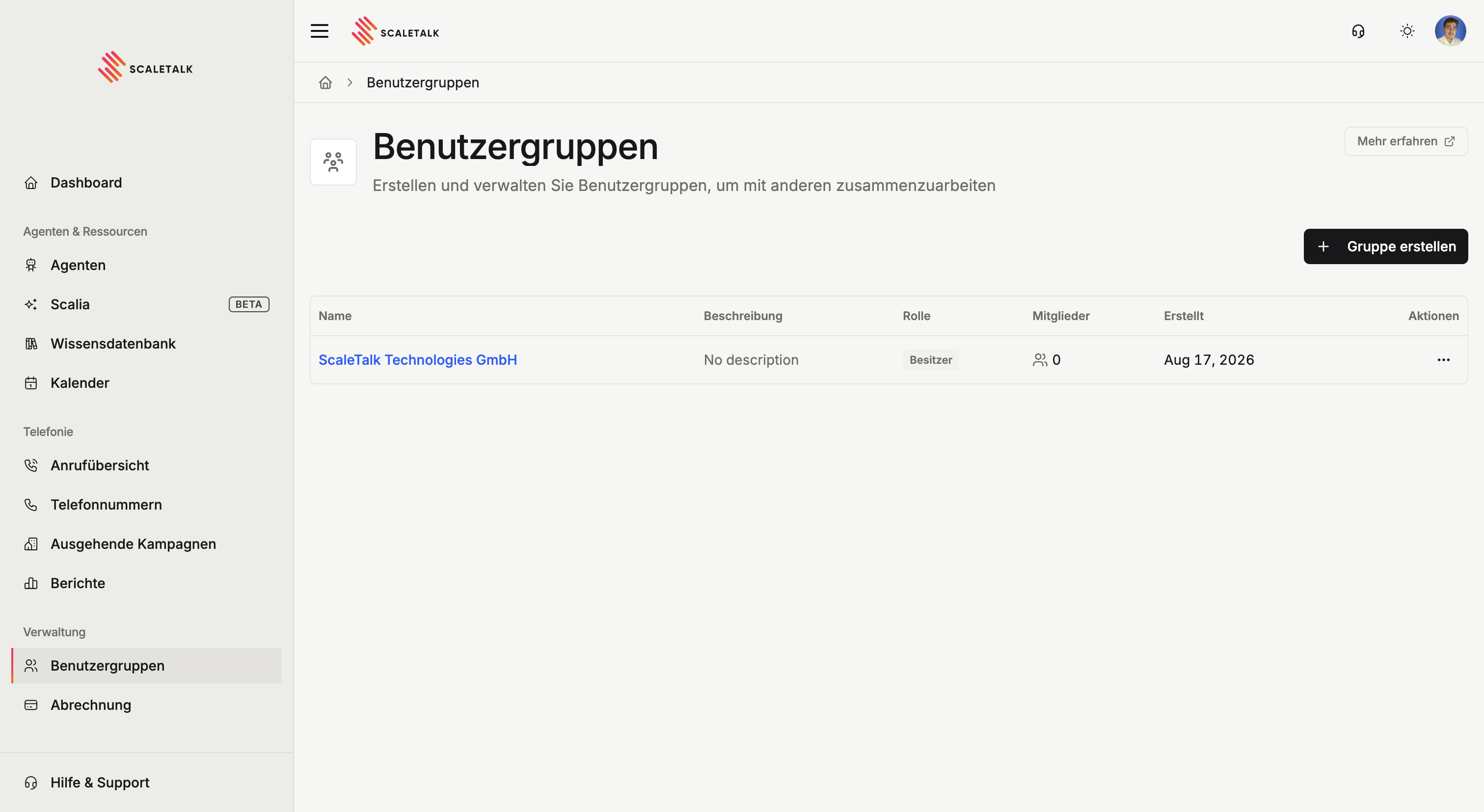
The overview lists every group you own or belong to, with name, description, role, members, created and actions. The role column tells you at a glance whether you own the group or are only a member.
Creating a group
- Click + Create group at the top right
- Give it a name (e.g. "Customer support team")
- Optionally add a description
- Click Create group
You land straight on the group detail page.
The group detail page
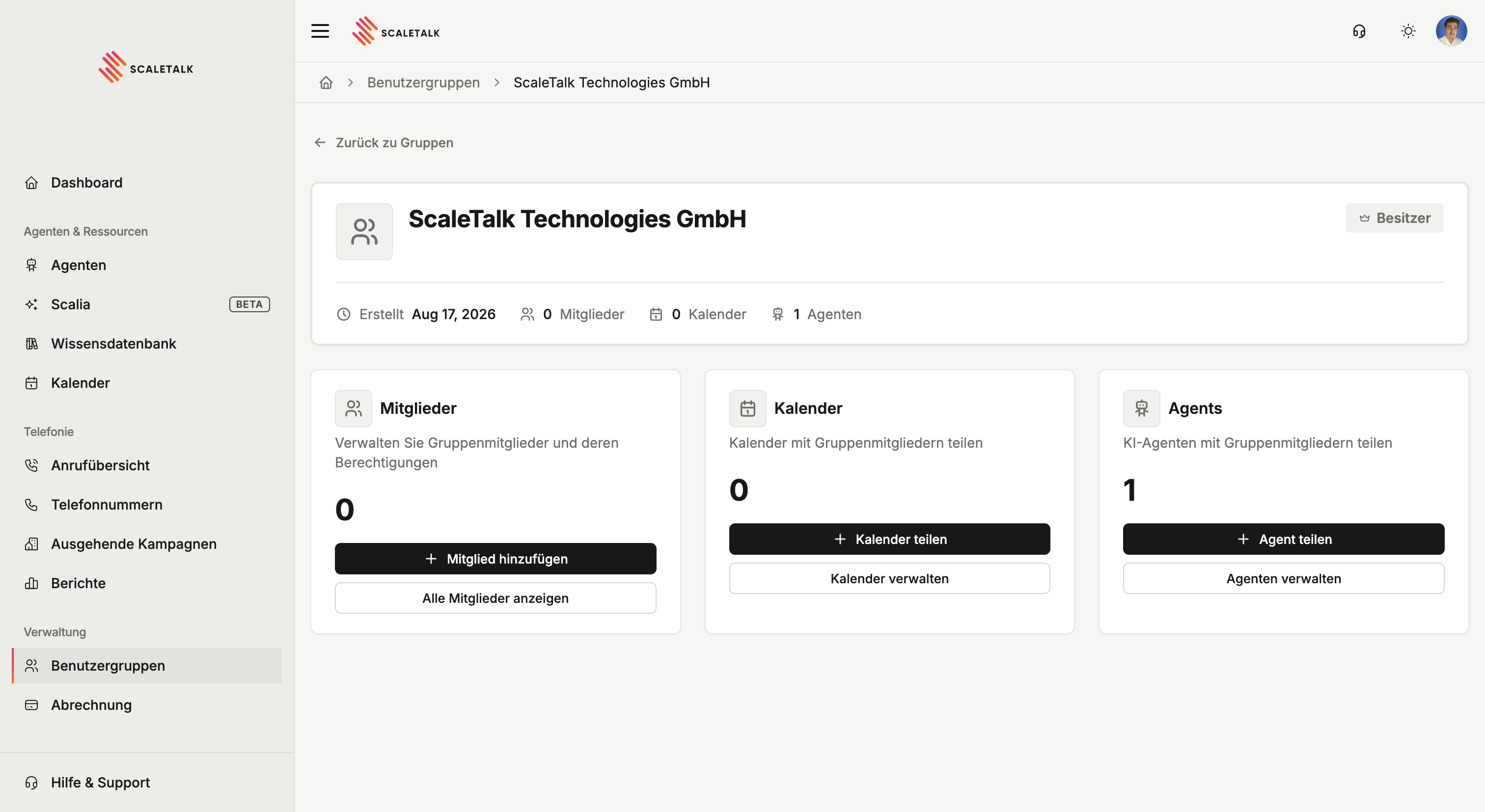
At the top sit the group name, your role and the key figures: creation date, number of members, shared calendars and shared agents.
Below are three cards, each with the same structure — a count, a button to add and one to manage:
| Card | Add | Manage |
|---|---|---|
| Members | Add member | View all members |
| Calendars | Share calendar | Manage calendars |
| Agents | Share agent | Manage agents |
Adding members
- On the members card, click Add member
- Enter the person's email address
- Confirm the GDPR consent
- Click Add member — they are in the group
A ScaleTalk account is required
You can only add people who already have a ScaleTalk account. The email address has to match an existing one.
Sharing resources
- Share calendar: pick one of your connected calendars and set the access level — read-only or full access.
- Share agent: pick one of your agents and set the permissions — edit, delete, view metrics.
Every share asks for and records a GDPR consent.
Shared does not mean copied
A shared agent stays the same agent. If a group member with edit rights changes the prompt, the change applies to incoming calls immediately — there is no separate copy.
Switching workspaces
Group members switch into the group's workspace through the profile menu at the top right and the Switch workspace entry. There they see the shared agents and calendars and can configure them within their permissions.
The way back is the same — the menu then shows Personal for your own space.
Roles
| Role | Description |
|---|---|
| Owner | Created the group. Can add/remove members, share resources, and delete the group. |
| Member | Was added to the group. Can access shared resources but cannot manage members. |
Deleting or Leaving a Group
- Owner: Can delete the group via the three-dot menu. This removes all member associations and shares.
- Member: Can leave the group via the three-dot menu and thereby loses access to all shared resources.