Scalia
The AI agent builder that asks you questions and turns them into a finished agent.
Scalia is ScaleTalk's AI agent builder. Instead of writing a prompt on a blank page you fill in a questionnaire — and get a fully configured agent with prompt, voice, knowledge base, variables and capabilities.
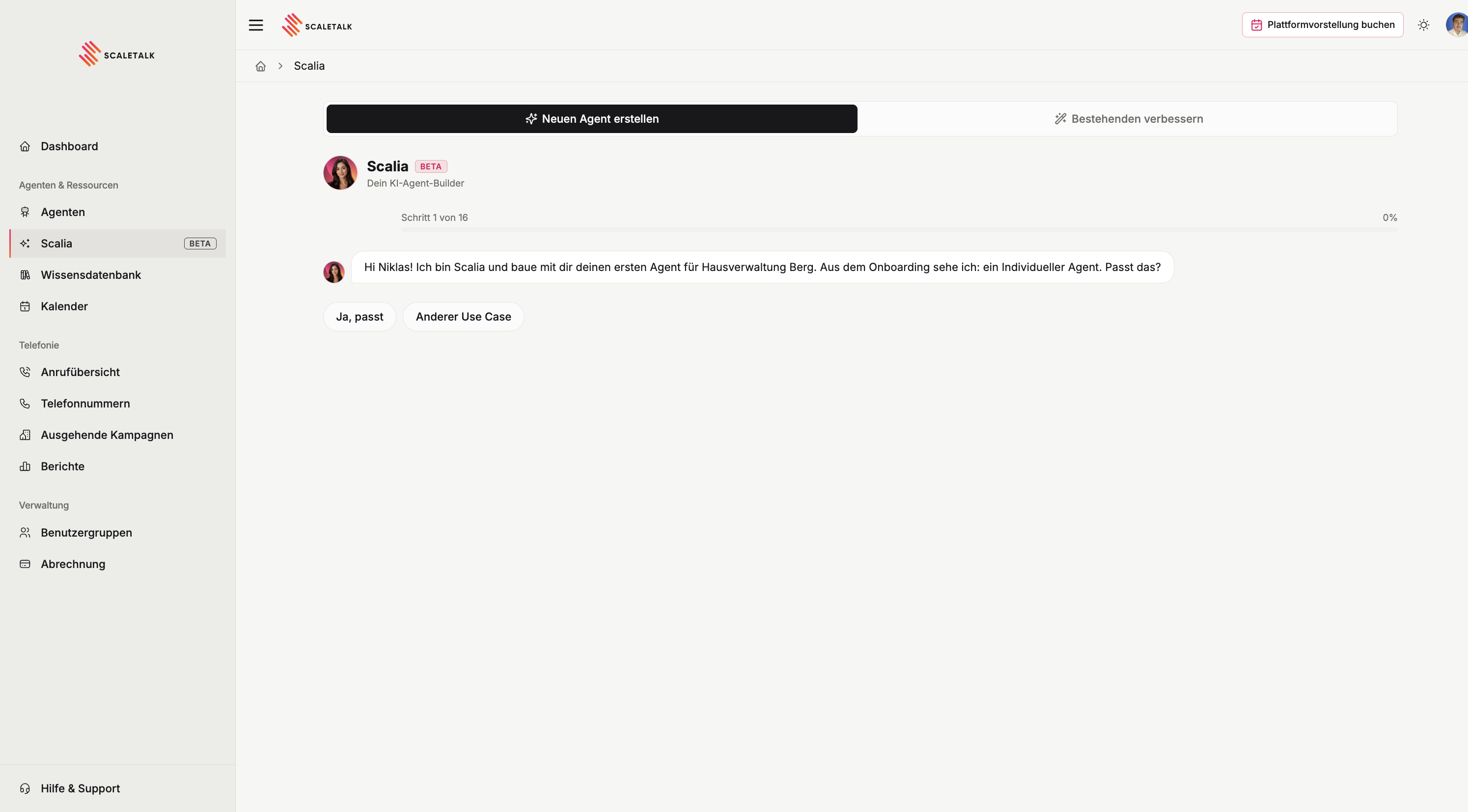
Beta
Scalia is marked beta. The results are already production-grade, but the question set keeps evolving. Check the generated agent like any other under Testing before going live.
Two modes
| Mode | For |
|---|---|
| Create a new agent | From nothing to a finished agent, guided by a questionnaire |
| Improve an existing one | Sharpen a running agent against real calls |
The second mode is also reachable straight from the agent list, via Improve with Scalia on each agent card.
Building a new agent
Scalia starts from what it already knows about your account — from onboarding, say — and lets you confirm or correct it. Then you work through the questions. Every one can be typed or dictated.
Typical requests
The most important question in the whole questionnaire. List what people call you about:
Rental enquiries, general questions about apartment availability,
damage reports, viewing appointments and other requests
Scalia reads which capabilities you actually need out of this. Mention viewing appointments and you get the calendar question later; mention nothing appointment-like and it is skipped. The more concrete you are here, the less you have to fix afterwards.
Knowledge base
If you want, upload a PDF, Word or text document right away. It becomes the finished agent's knowledge base.
Tone
How the agent should come across — human and warm, for instance. You can add your own: "friendly, empathetic and professional".
Flow and contact details
Here you describe in detail how the agent should work and which contact details it must collect: name, email, phone number, optionally an address or more depending on the request. These become the variables later.
Transfers, appointments, API
Depending on your requests, Scalia asks about:
- Transfers — warm or cold, or none at all
- Appointment booking — including connecting a calendar directly
- API request — a draft integration with an external system
All of it is skippable and can be added later in the editor.
Pronunciation, voice, opening
Optionally a pronunciation dictionary for in-house terms, then the voice — Scalia offers the most-used ones — and a pre-filled opening line you can keep or rewrite. Finally the email address the call summary should go to.
Call guide
If you already have a decision tree or call guide, upload it here and Scalia follows it. If not: skip.
Finally, Create agent. Generation takes a moment.
The preview
You then see the finished agent along with the generated prompt. View system prompt expands it in full.
What you see in the preview is exactly what gets saved
Saving does not regenerate anything — the prompt from the preview goes into the agent unchanged. So anything you dislike here you fix either right here or afterwards in the editor.
Save to dashboard creates the agent. From then on it is an ordinary agent: knowledge base uploaded, prompt written, variables defined, greeting set. You can go straight to Test agent.
Answer in full sentences
The more concrete your answers, the better the generated prompt. "Customers ask about repair appointments, spare parts and the status of open orders" produces a far more usable agent than "support".
Improving an existing agent
This is the underrated half of Scalia — and the one you should use regularly.
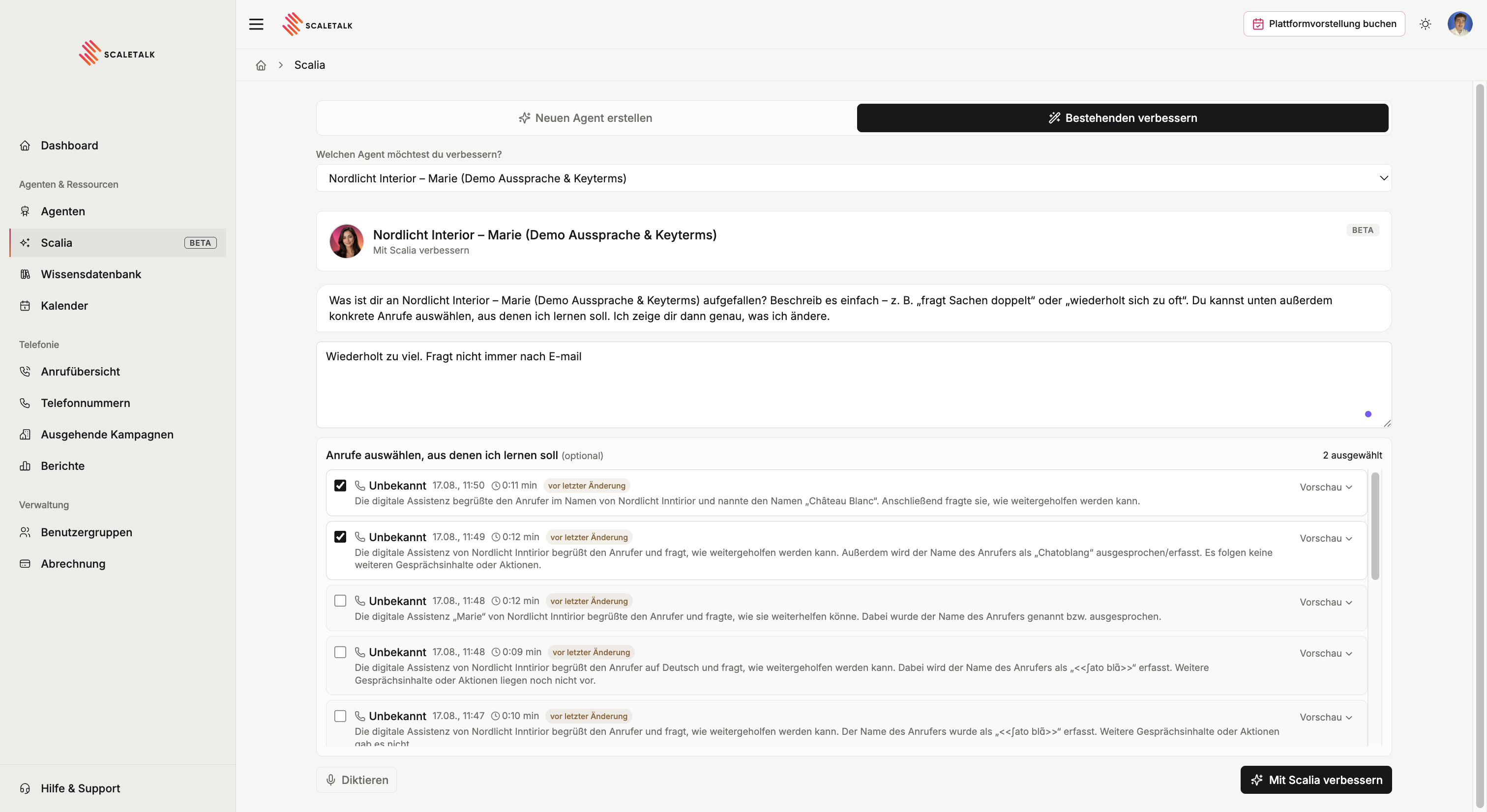
Pick the agent
At the top you choose which agent to improve.
Say what bothers you
Free text, typed or dictated. Concrete beats general:
During booking it doesn't always ask for the name.
Things get repeated too often.
Too little warmth — no acknowledgements like "mhm" or "I see".
Select transcripts
The decisive step: you pick real calls for Scalia to work from. That way the improvement works on what actually happened, not on your memory of the problem.
Improve with Scalia
Scalia reworks the prompt and shows the result twice: at the top in plain words what changed, and below the prompt as a comparison — struck through in red what goes, green what arrives.
Apply the change
If it fits, apply it and the new prompt is in the agent.
The best time for this is not right after creating the agent but after the first real calls have run. By then the call overview tells you where the agent actually falls down.
Scalia or writing it yourself
Both end in the same place; an agent is an agent. The difference is the starting point:
- Scalia when you can describe the use case well but do not know how a good prompt is structured.
- Write it yourself when you already have a proven prompt or are rebuilding an existing agent.
Once created, a Scalia agent is an ordinary agent. You can override every setting by hand in the editor — and the prompting guide helps you sharpen it deliberately.
Not visible in every account
In partner accounts Scalia is available to owners only, not to all users. If the entry is missing from your sidebar, that is why.