Call Overview
View call history, listen to recordings, read transcripts, and review extracted variables.
The Call Overview shows you all conversations handled by your AI agents. You can find it under the Call Overview menu item in the sidebar.
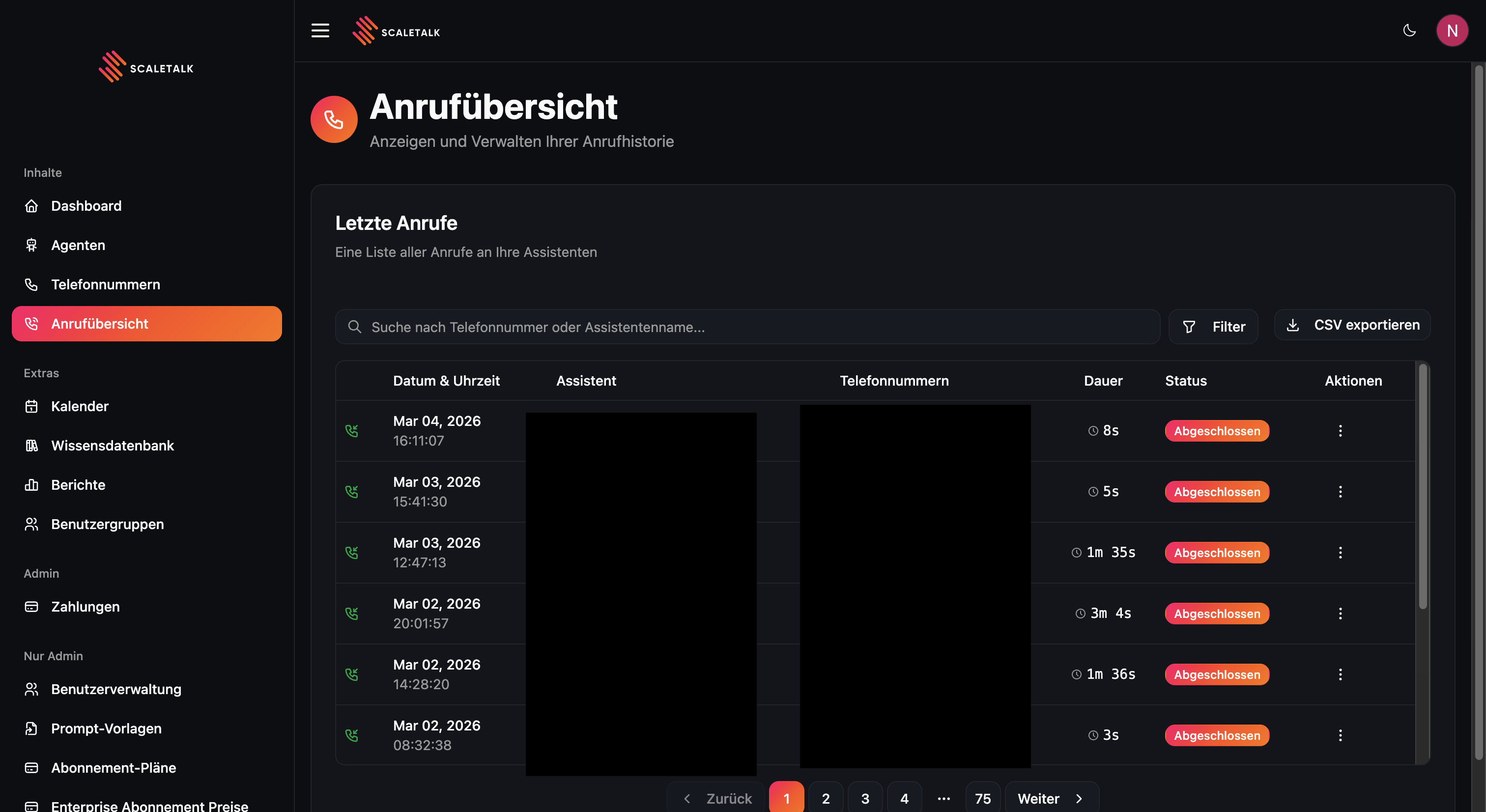
The table shows per call: Date & Time, Agent, Phone Numbers, Duration, Status, and Actions.
Filtering and Searching Calls
Use the search bar to search by phone number or agent name. Use the Filter button to narrow down results further:
| Filter | Description |
|---|---|
| Time Period | Set start and end date |
| Agents | Filter by specific agent |
| Status | Completed, Answered, Active, Failed, etc. |
| Direction | Inbound or outbound |
Active filters are displayed as badges below the search bar. Click the X next to the search bar to reset all filters at once.
Call Status
| Status | Description |
|---|---|
| Completed | Call ended normally |
| Answered | Call was picked up |
| Active | Call is currently in progress |
| Failed | Technical issue |
| No Answer | Call was not picked up |
Categories and labels
Every call carries a category. Until one is assigned it reads Uncategorised.
Manage labels above the table is where you create the labels available in your account — Appointment request, Complaint, Wrong number and so on. You pick a name and a colour, and every new incoming call is then sorted automatically — no manual categorising after the fact.
Labels are what turns a call list into an analysis: only once conversations are categorised can you answer which requests actually come in, and how many of them the agent already handles alone.
Few labels, cleanly cut
Five to eight mutually exclusive categories are workable. Twenty overlapping labels stop being maintained after two weeks.
Quick preview
Clicking a row opens the quick preview — for day-to-day work it is usually enough.
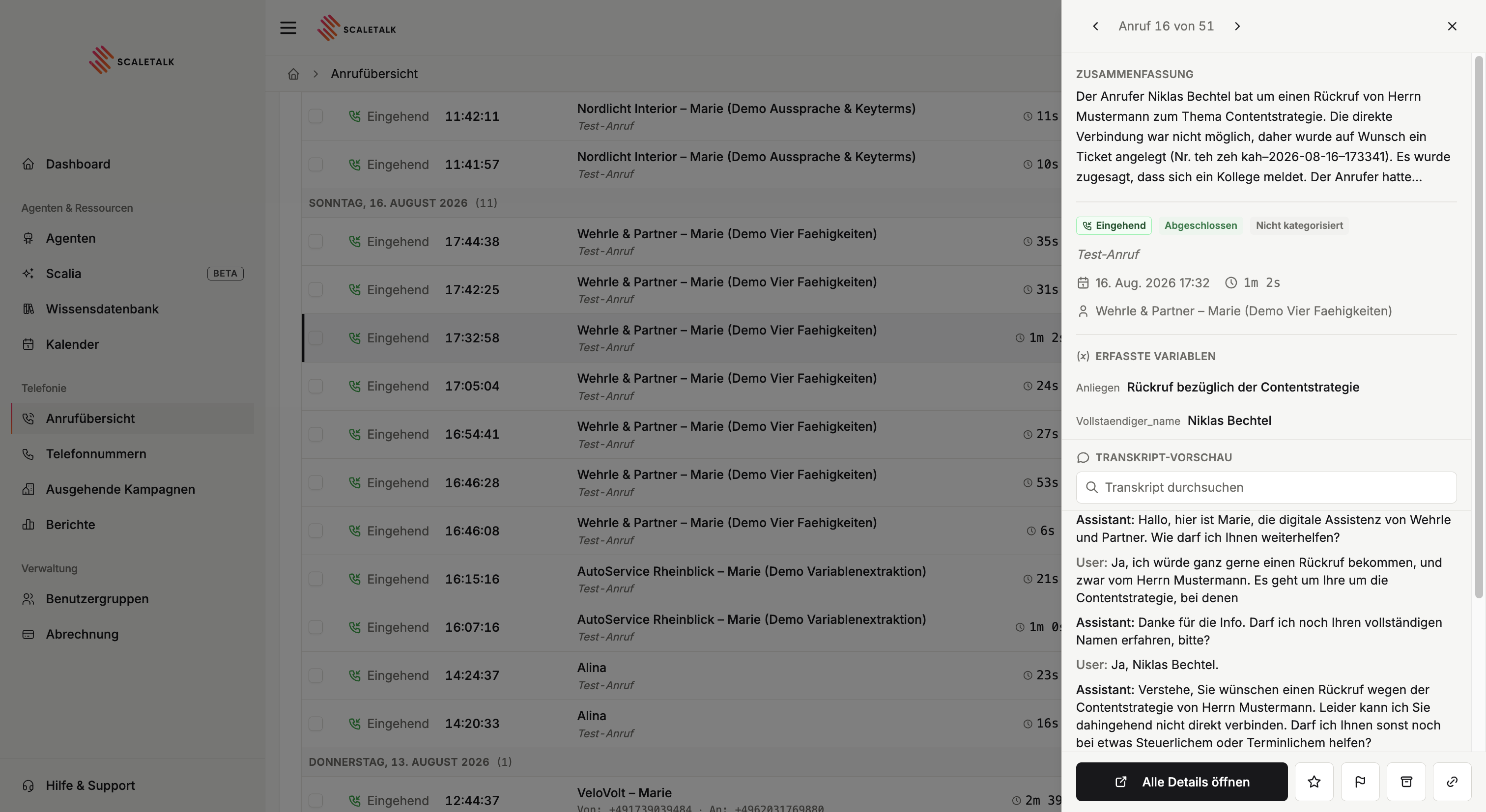
At the top sits an AI-generated summary, below it the categories and then the captured variables. This is exactly why variable extraction pays off: instead of reading a transcript or a summary, you see name, request and callback number side by side as fields.
Below that runs the transcript. It also shows what the agent did in the background — when it queried the knowledge base, booked an appointment or called any other tool.
Actions
| Action | For |
|---|---|
| Star | Keep a call, e.g. as an example for Scalia |
| Flag | Mark a call for follow-up |
| Archive | Take it out of the working list |
| Create link | A shareable link to this call, e.g. for a colleague |
Marked calls pay off later
When a call goes wrong and you notice it, star it. On your next pass with Improve with Scalia you select exactly those transcripts — the improvement then works on real cases instead of guesses.
Call Details
Use Open full details to reach a call's complete page.
Click on a call in the table to open the full details.
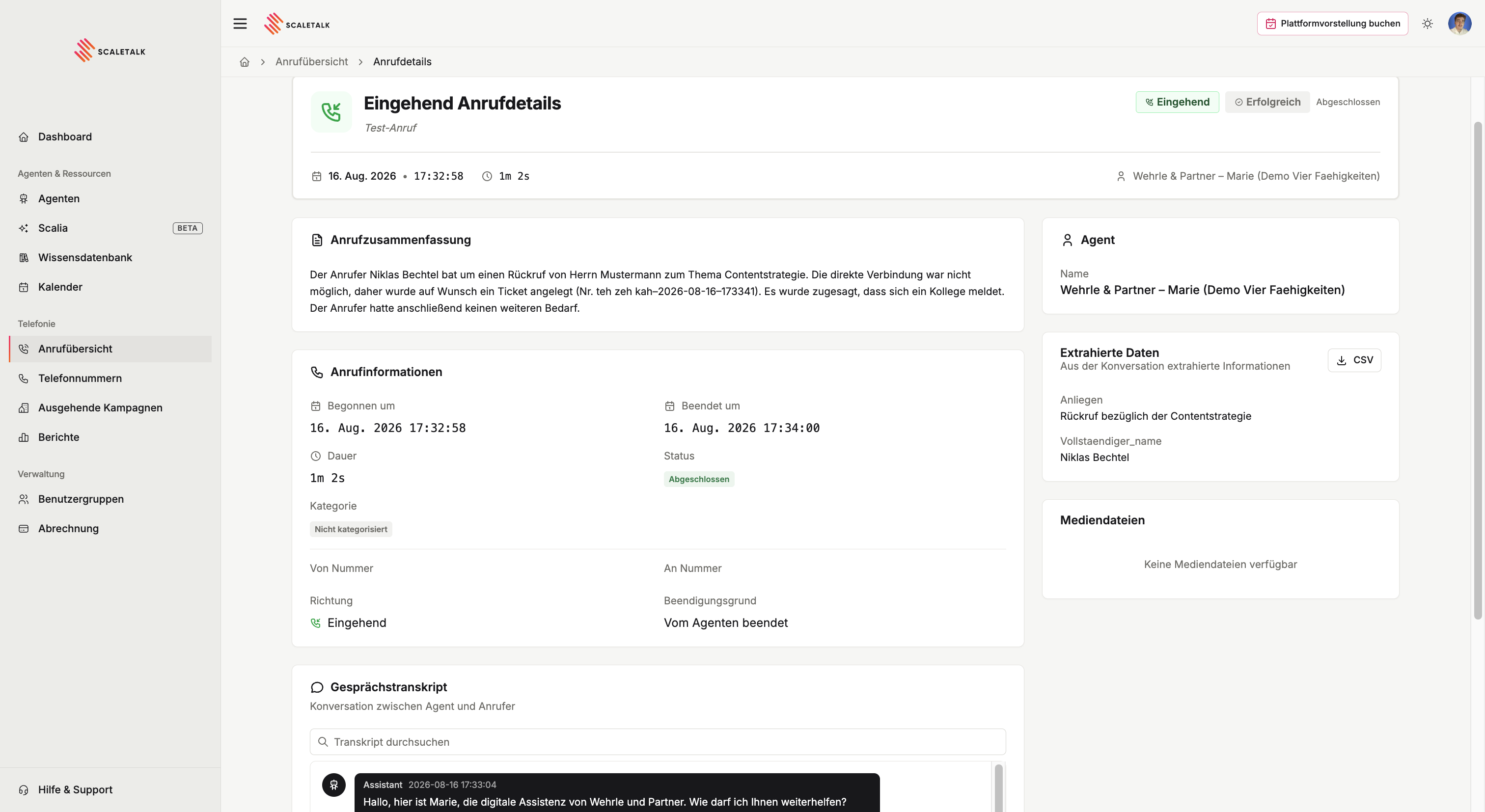
The detail view shows you:
Call Information
- Started at / Ended at — Exact timestamps
- Duration — Length of the conversation
- Status — e.g., "Completed"
- From Number / To Number — The phone numbers involved
- Direction — Inbound or Outbound
- Termination Reason — e.g., "Ended by agent"
- Agent — Which agent handled the call
Playing Recordings
In the Media Files section you will find the audio player. With it you can:
- Play and pause the conversation
- Skip to specific points
- Adjust the playback speed
- Download the recording
Enable Recording
Call recording is enabled per agent in the Parameters tab under "Recording & Privacy". Be mindful of GDPR — inform the caller at the beginning of the conversation about the recording.
Conversation Transcript
Below the call information you will see the full conversation transcript with:
- Speaker labels — Distinguishing between agent and caller
- Timestamps — When each message occurred
The transcript is generated in real time during the call.
Extracted Variables
If you have configured variable extraction in the follow-up settings, the extracted values are also displayed in the call details — e.g., the caller's name, email, concern, or appointment request.
CSV Export
You can export your call data as a CSV file:
- Apply the desired filters
- Click Export CSV in the top right
- The file is downloaded automatically
The export contains all call fields: date, time, duration, agent, phone numbers, status, direction, and all extracted variables.
Tip
Apply time period filters before exporting to keep the file size manageable.
Best Practices
- Review regularly: Listen to a few calls weekly to improve your agent's quality and adjust prompts.
- Use status filters: Focus on failed or transferred calls first to identify issues quickly.
- Use variables for integrations: Extracted variables can be sent automatically to CRM or ticketing systems via Webhooks.