Phone Numbers
Buy, import, and manage phone numbers for your ScaleTalk voice agents.
Phone numbers are the entry point for your voice AI agents. The Phone Numbers page is where you manage all numbers associated with your account.
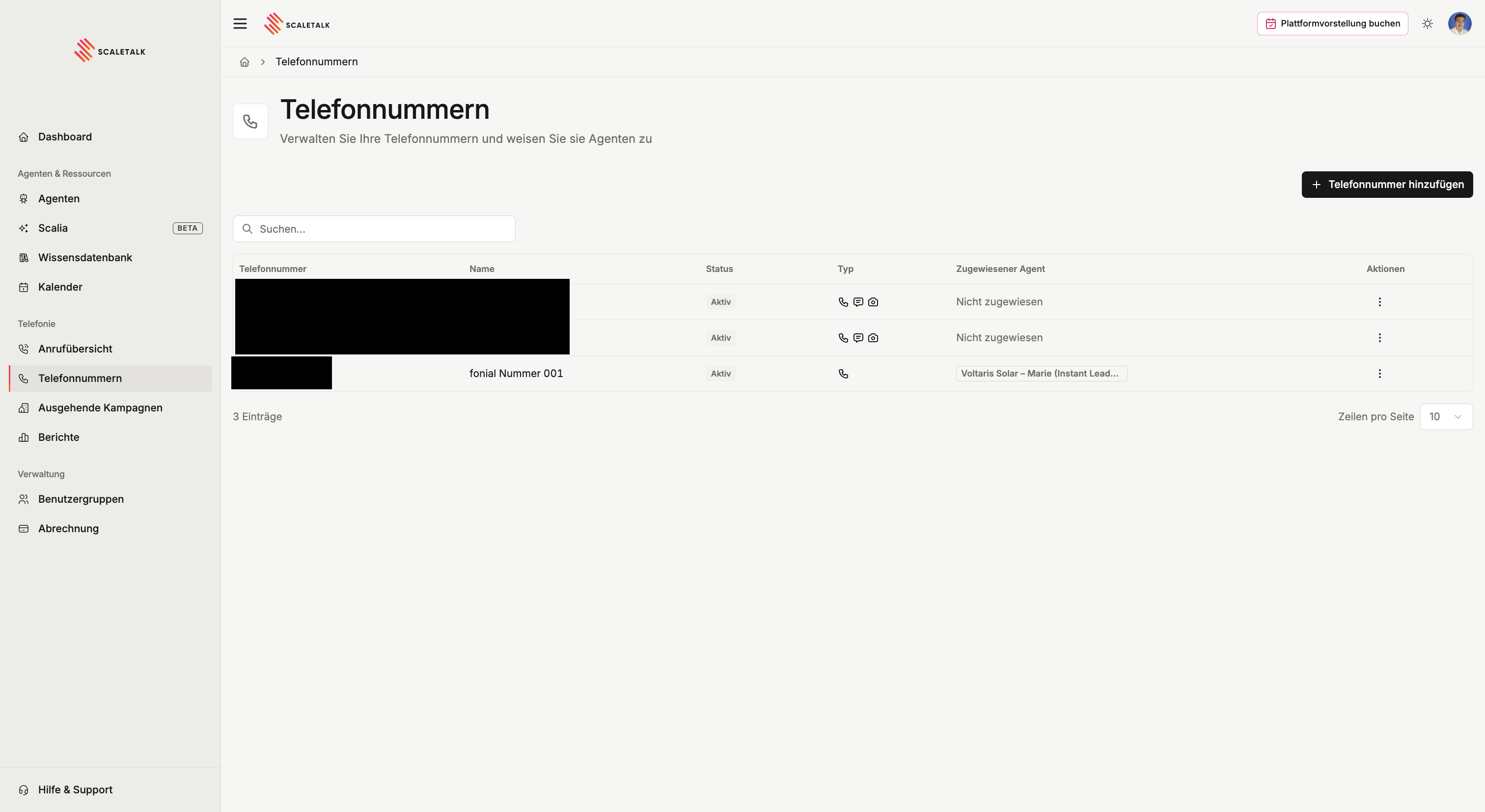
The overview shows at a glance: Phone Number, Name, Status, Type, Assigned Assistant, and available Actions.
Adding a Phone Number
There are three ways to add a phone number to your account:
1. Buy a Phone Number (Instant Number) — Recommended
Easiest Method
This is the fastest and most straightforward way. You buy a number from ScaleTalk, assign it to an agent, and simply set up call forwarding to this number with your existing cloud phone provider. The caller does not notice and cannot see the ScaleTalk number — giving you maximum control with minimum effort.
How it works:
- Click + Add Phone Number (top right) or Buy Phone Number (in the center, if you have no numbers yet)
- Select German Number (+49 6203)
- Give the number a name (for internal identification only, e.g., "Support Line")
- Confirm the purchase — the number appears immediately in your overview
- Assign an agent to the number
- Configure call forwarding to the purchased ScaleTalk number with your existing phone provider
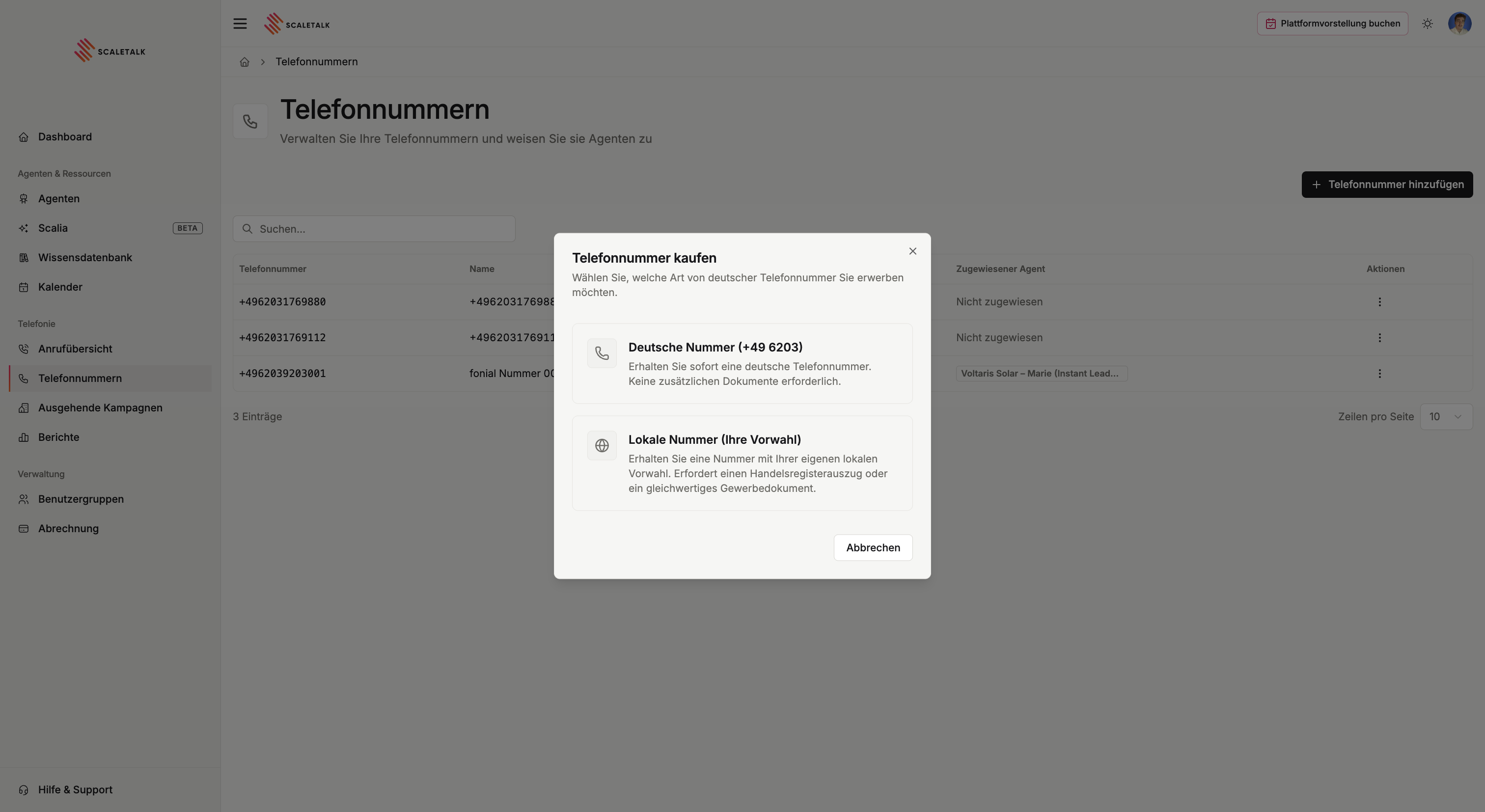
The cost is 3 EUR per month. You are automatically assigned a number with the area code +49 6203.
Payment Method Required
To buy a number, you must first set up a payment method. Once a card or SEPA direct debit is on file, you can purchase a number right away.
2. Local Number with Your Own Area Code (Business Verification)
If you want a number from your own district with a local area code (e.g., +49 621 for Mannheim), business verification is required.
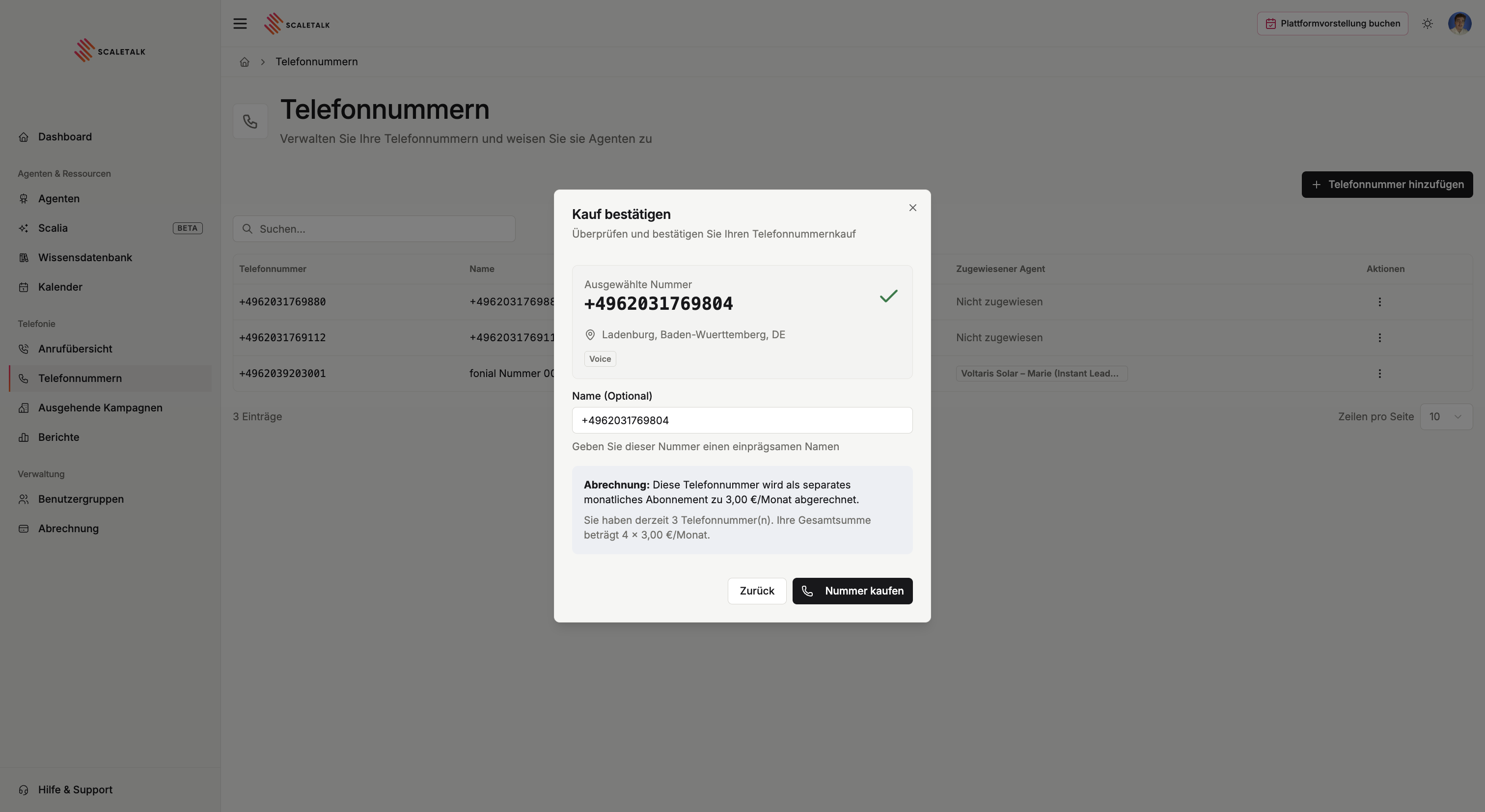
How it works:
- Click + Add Phone Number
- Select Local Number (Your Area Code)
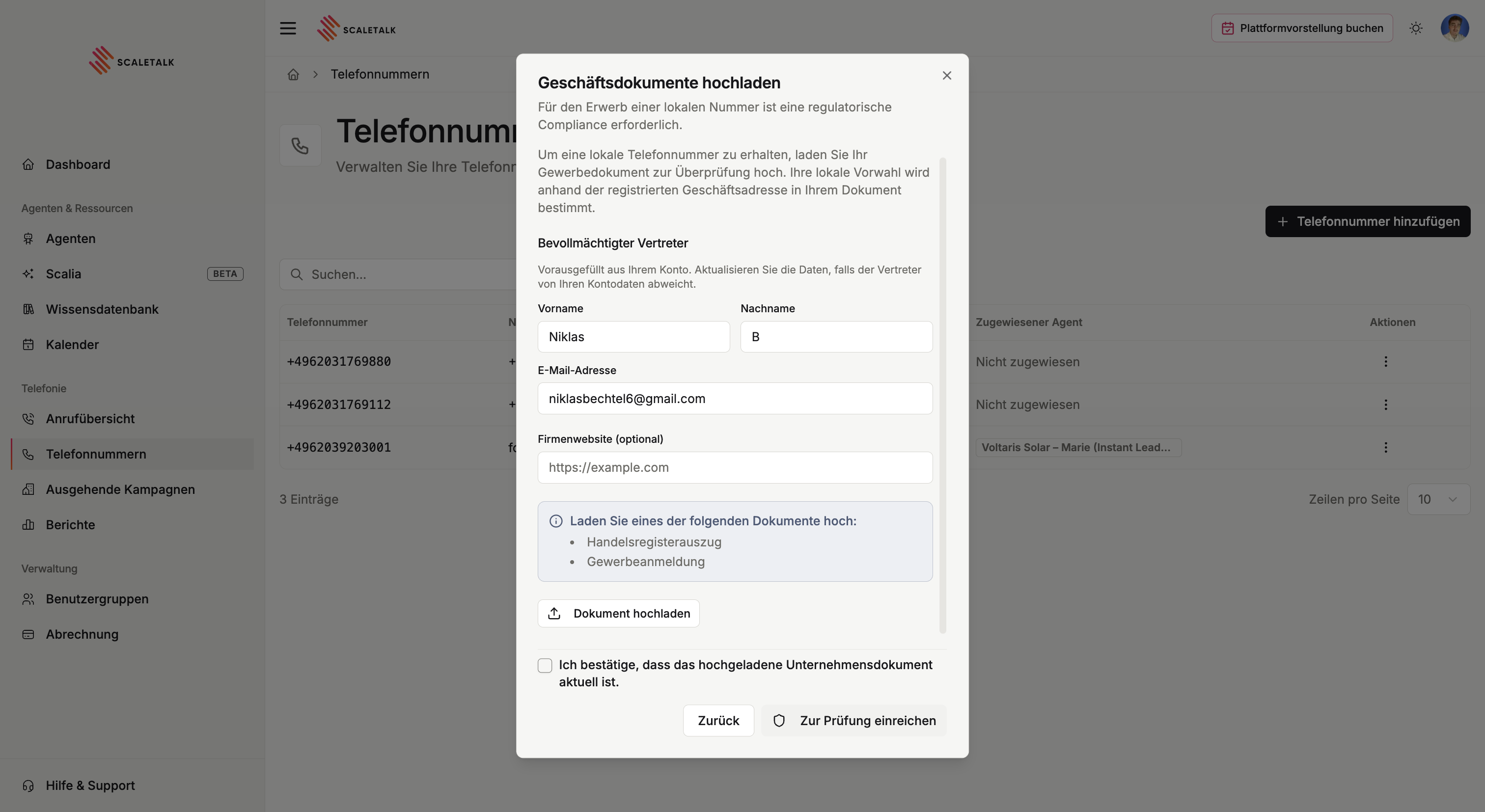
- Upload one of the following documents:
- Commercial register excerpt
- Business registration
- Confirm your details and click Submit for Review
Processing Time
The review typically takes 1–3 business days (up to one week maximum). Once approved, a number from your district is automatically assigned to you. You will receive a notification when the number is ready.
3. Import an Existing Number
Already have phone numbers with a provider? You can connect them to ScaleTalk via an integration.
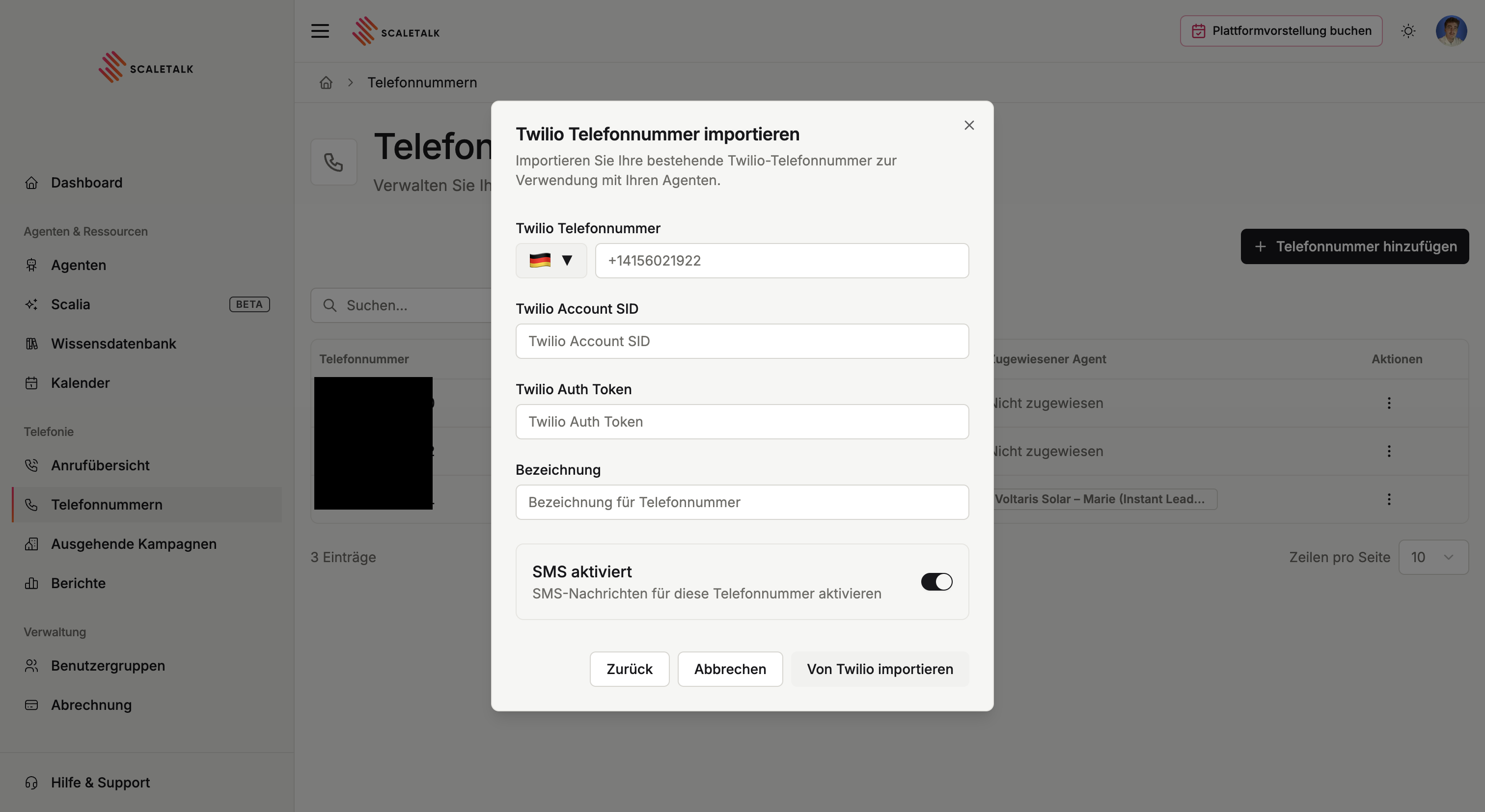
Twilio Import
ScaleTalk offers a standard integration with Twilio, the world's largest cloud communications provider.
How it works:
- Click + Add Phone Number in the top right
- Select Import SIP Number
- Choose Twilio as the provider
- Enter the following details:
| Field | Description |
|---|---|
| Twilio Phone Number | Your number in E.164 format (e.g., +14156021922) |
| Twilio Account SID | Copy the Account SID from your Twilio dashboard |
| Twilio Auth Token | Copy the Auth Token from your Twilio dashboard |
| Label | (Optional) A name for internal identification |
- Click Import from Twilio
SIP Trunking (BYO — Bring Your Own)
Alternatively, you can import a number from any SIP provider.
How it works:
- Click + Add Phone Number then Import SIP Number
- Select BYO SIP Trunk Number
- Enter your phone number in E.164 format (e.g.,
+4912345678900) - Optional: Assign a label
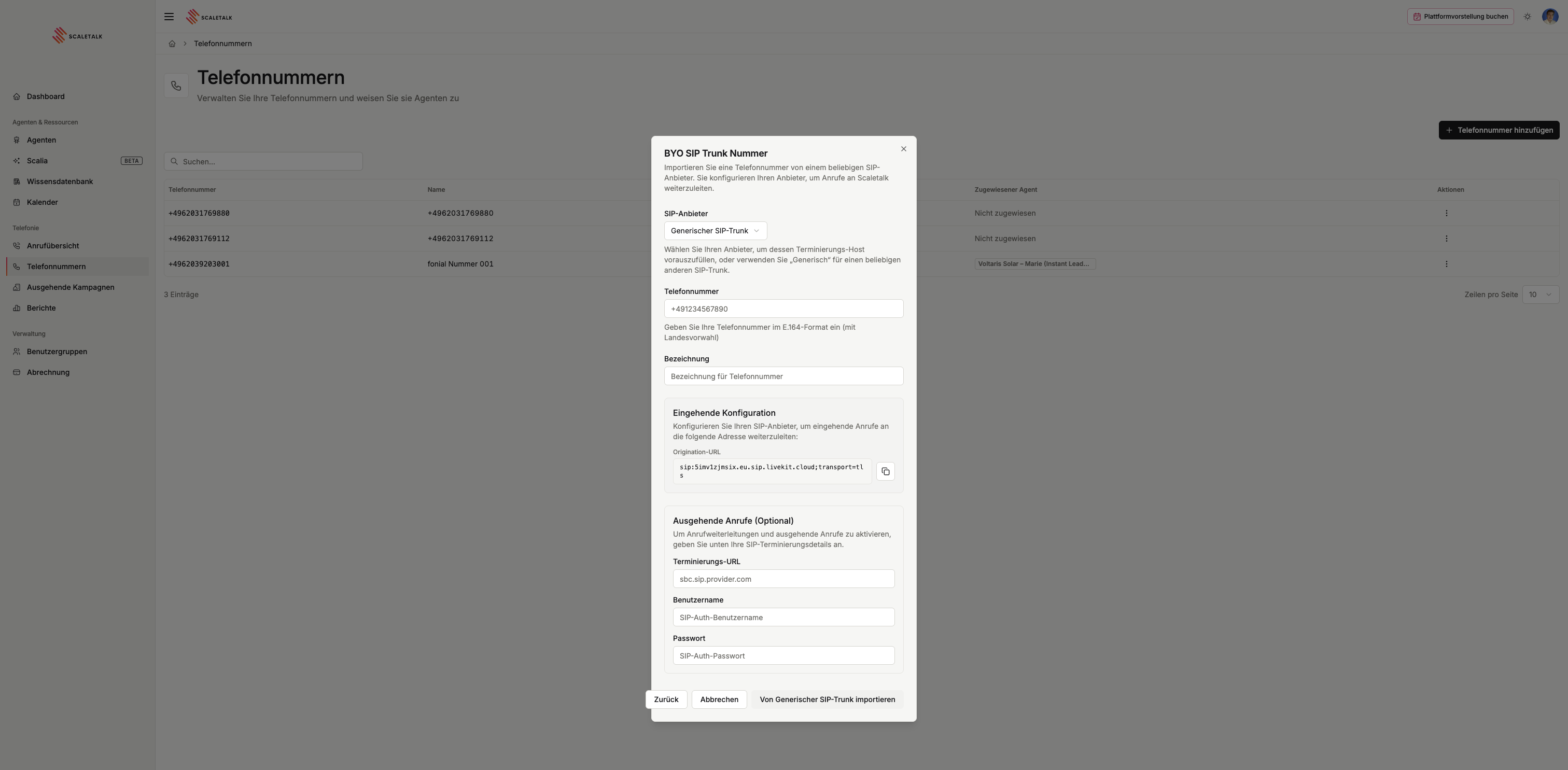
Inbound Calls: For inbound calls, you need to configure the displayed origination URL with your SIP provider:
sip:5imv1zjmsix.eu.sip.livekit.cloudYour provider then forwards all calls to this address, and ScaleTalk takes over.
Outbound Calls: For outbound calls, the termination URL, username, and password from your SIP provider are additionally required. This feature is not yet relevant for all users.
Assigning Agents
After adding a number, you can assign an agent to it. Only then will incoming calls be answered by your AI agent.
- Go to Phone Numbers
- Click the three-dot menu under Actions for the desired number
- Select an agent from the dropdown
- Save the changes
Tip
You can change or remove the agent assignment at any time. A number without an assigned agent will not answer calls.
Best Practices
- Use call forwarding: The simplest setup is to buy a ScaleTalk number and configure call forwarding with your existing phone provider. The caller only sees your original number — the ScaleTalk number remains invisible.
- Use descriptive names: Name your numbers clearly (e.g., "Customer Support", "Sales Hotline Berlin") so you can instantly see which number serves which purpose in the overview.
- Test before going live: Call the number and verify that the correct agent answers and the audio quality is good.