Import Fonial Number
Step-by-step guide to importing a Fonial phone number into ScaleTalk.
Fonial is an official partner of ScaleTalk and one of the leading cloud telephony providers in Germany. Thanks to the native integration, you can import your existing Fonial phone numbers directly into ScaleTalk and connect your Voice AI agents with your existing phone infrastructure.
This guide walks you step by step through importing a Fonial number into ScaleTalk. The process consists of three parts: creating the number in ScaleTalk, setting up call forwarding in Fonial, and completing the import.
Complete Video Guide
Prerequisites
- An active Fonial account with at least one phone number
- A ScaleTalk account
- Access to the Fonial customer portal at kundenkonto.fonial.de
Step 1: Identify Your Number in Fonial
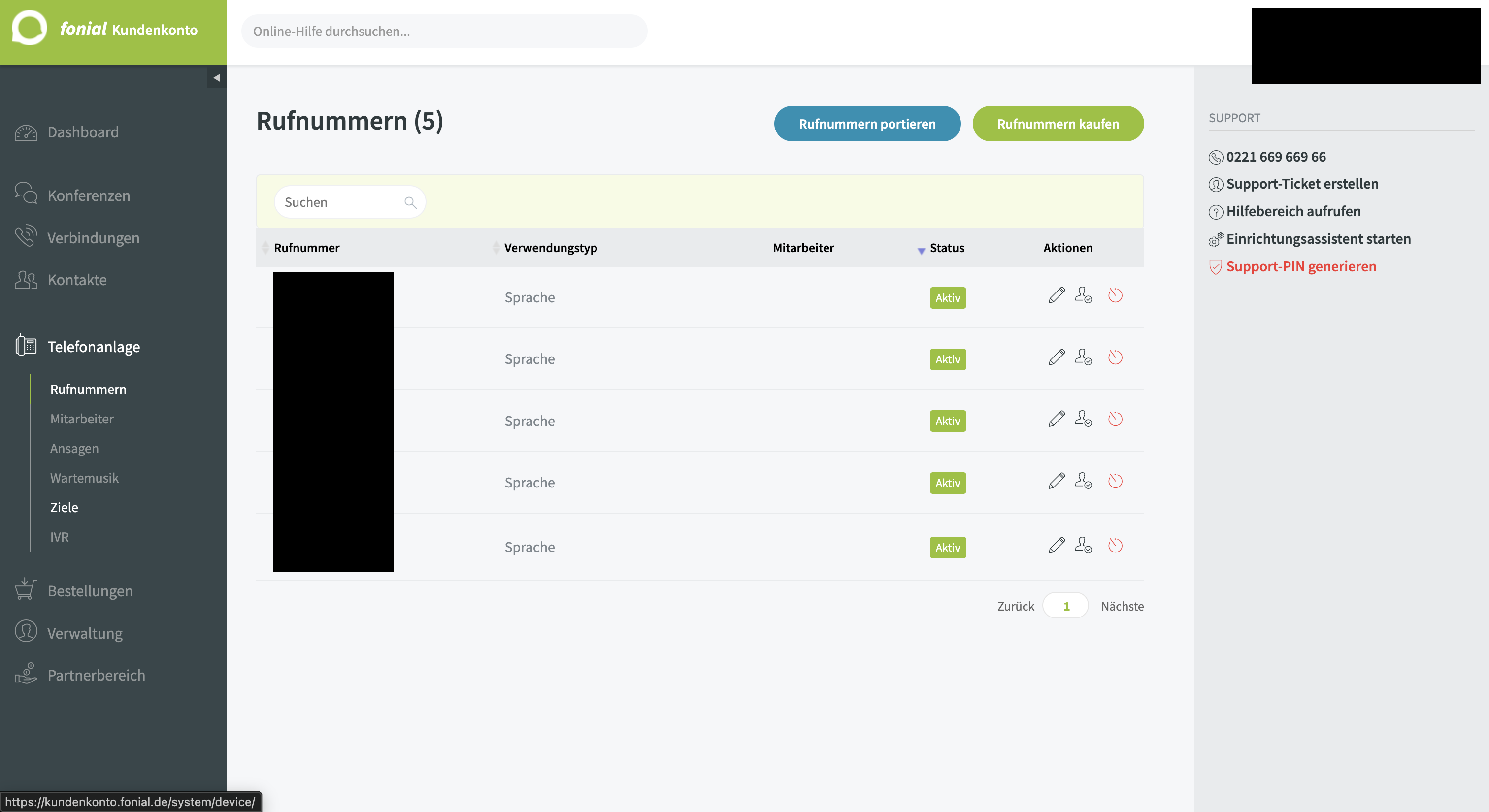
Log in to your Fonial customer account and navigate to Telefonanlage → Rufnummern (Phone System → Phone Numbers).
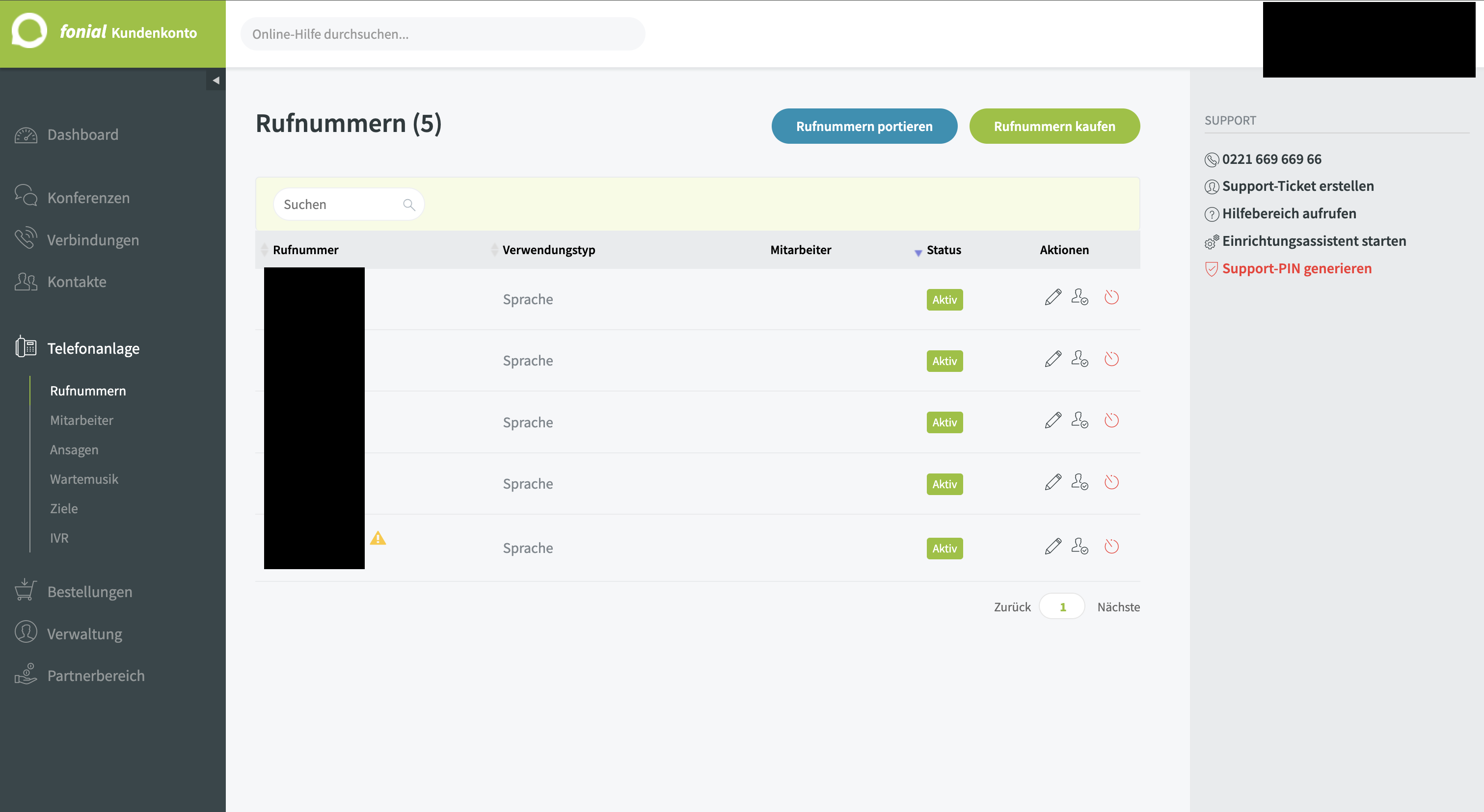
Here you can see all your active phone numbers. Note the number you want to import into ScaleTalk — you'll need it in E.164 format (with country code, e.g. +4922166966966).
Step 2: Create the Number in ScaleTalk
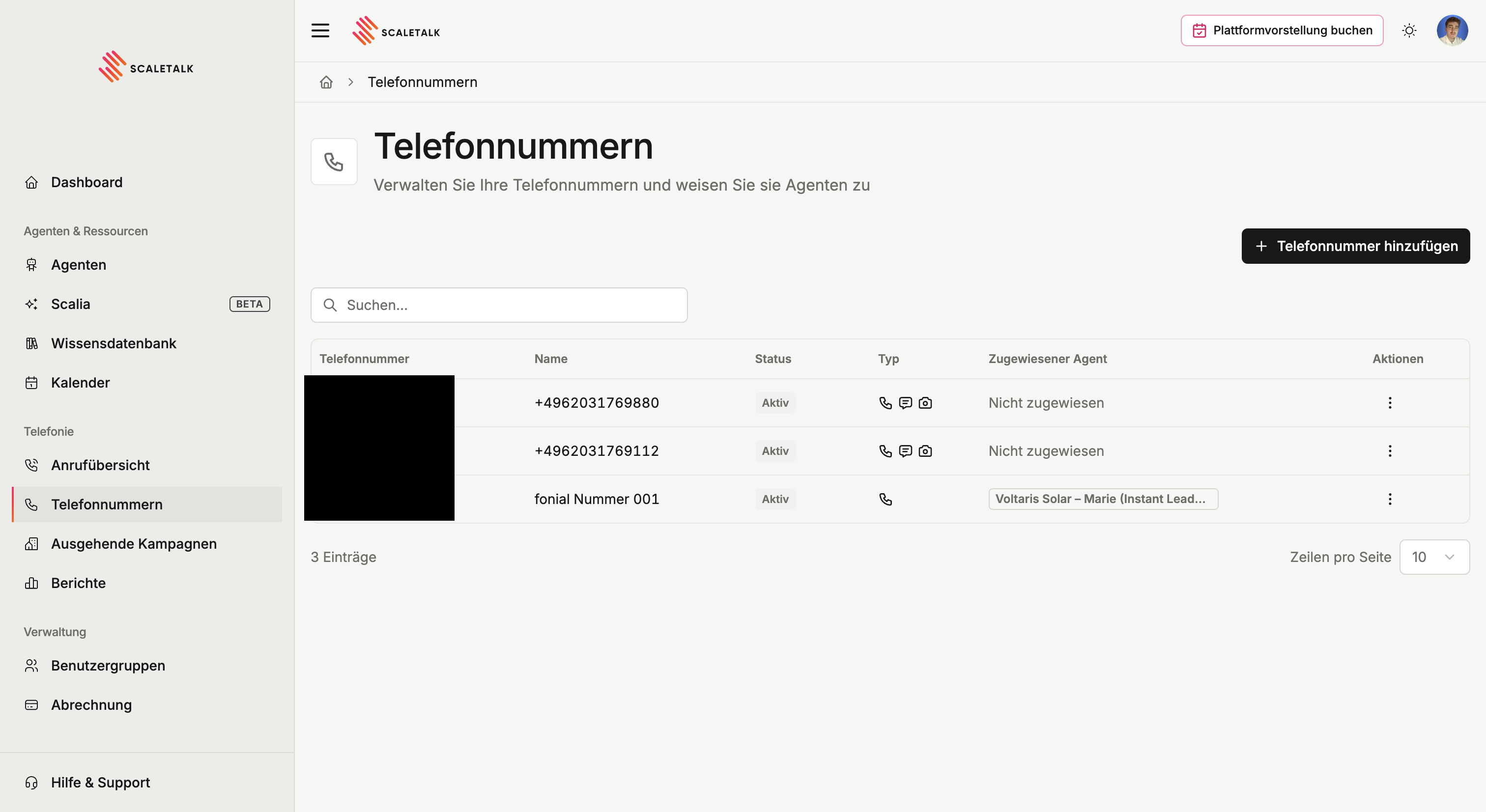
- Open ScaleTalk and navigate to Phone Numbers in the sidebar
- Click + Add Phone Number in the top right
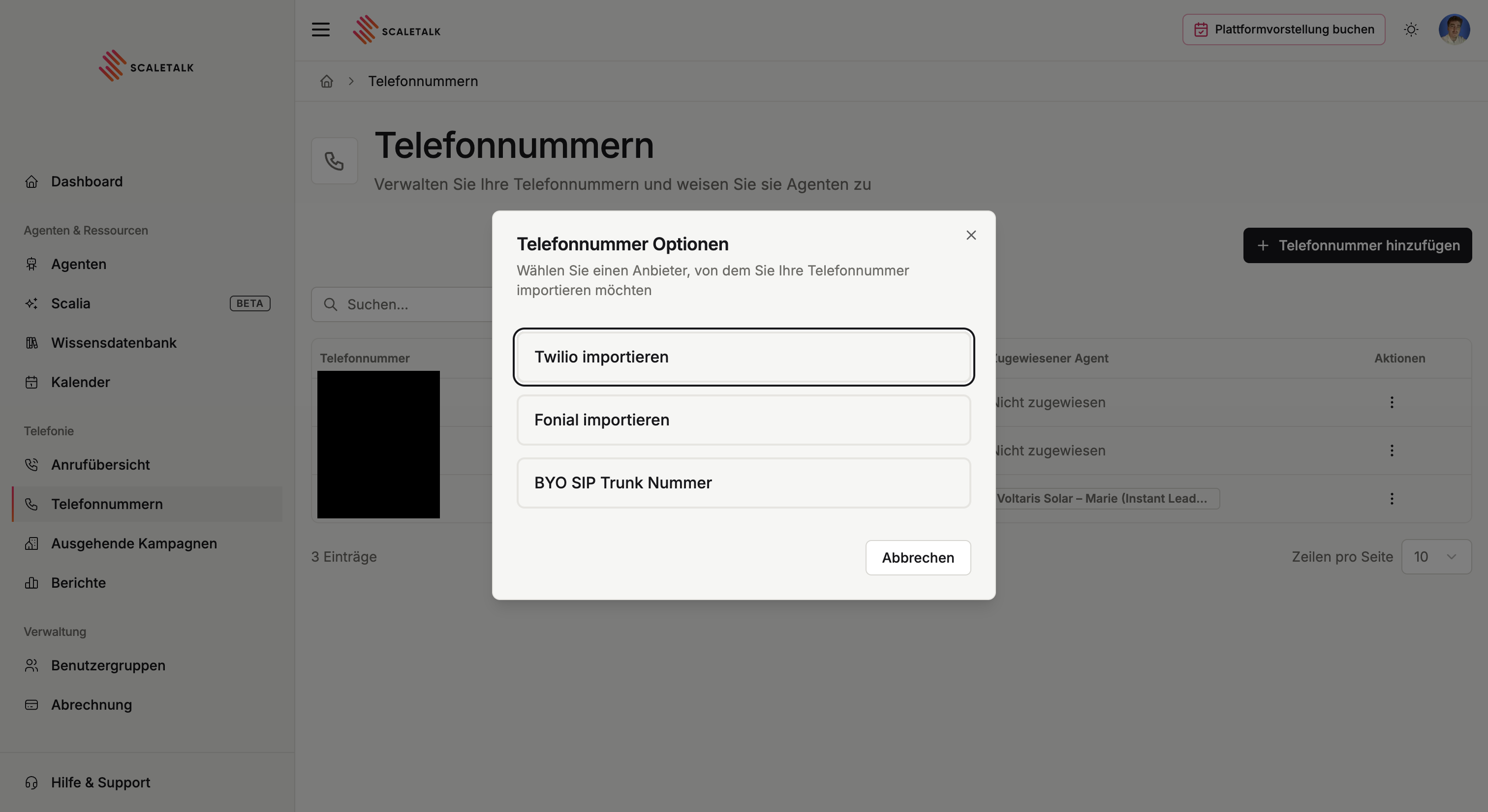
- Select Import from Fonial from the three options
- Enter the Fonial phone number in E.164 format (with country code, e.g.
+491234567890) - Give it a label (e.g. "Fonial Main Number")
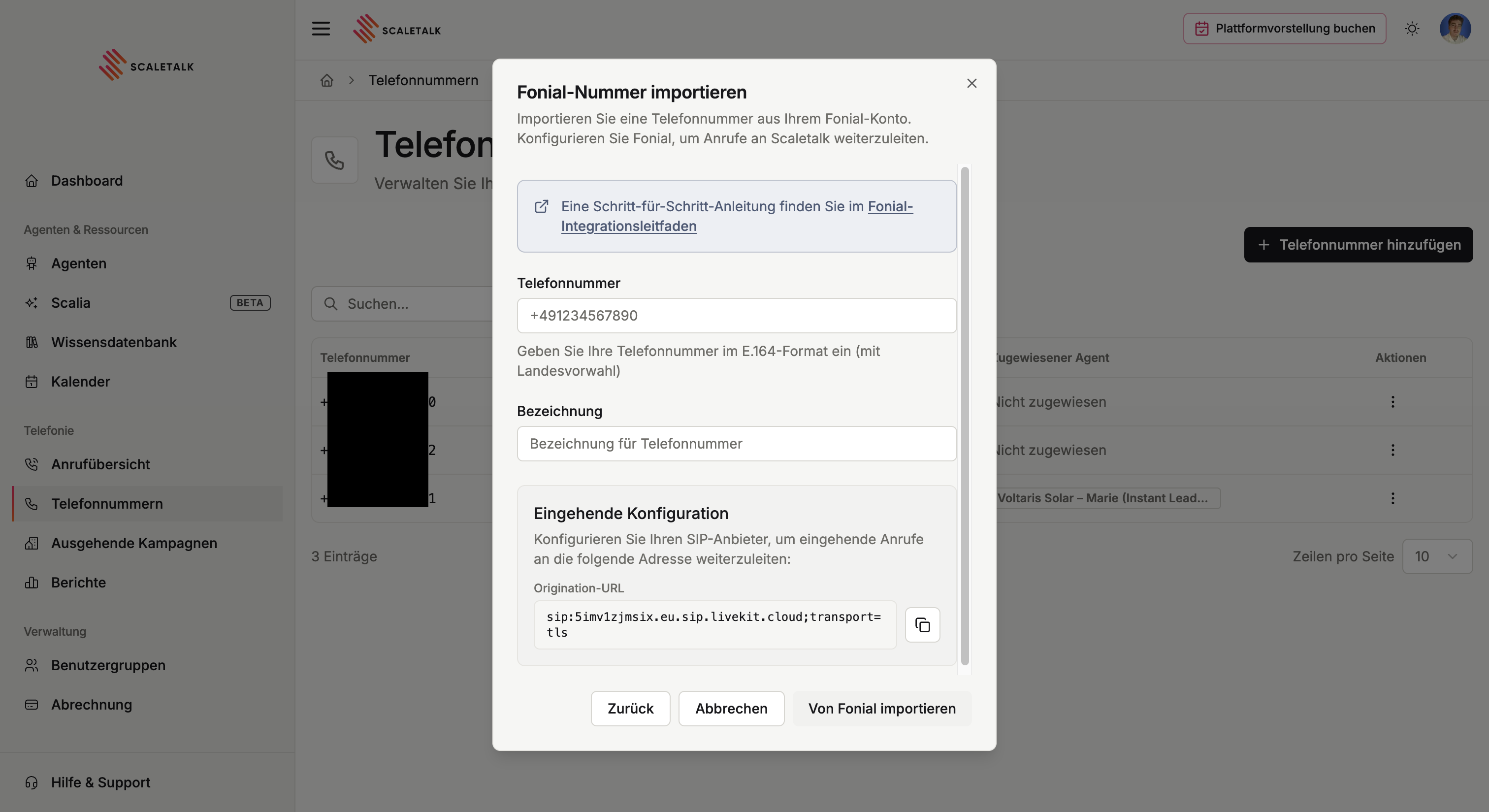
- Under Inbound Configuration, the Origination URL now appears — you'll need this in the next step
Copy the Origination URL
Copy the Origination URL to your clipboard now (click the copy icon on the right). You'll need it to set up the forwarding in Fonial. Do NOT click "Import from Fonial" yet — that comes at the very end.
The Origination URL has the following format:
sip:49xxxxxxxxxxxx@5imv1zjmsix.eu.sip.livekit.cloudNote on the format
The + before the country code is intentionally missing in the Origination URL. ScaleTalk removes the + in the URL automatically — you don't need to change anything here.
Step 3: Create a Forwarding Target in Fonial
Now switch back to your Fonial customer account.
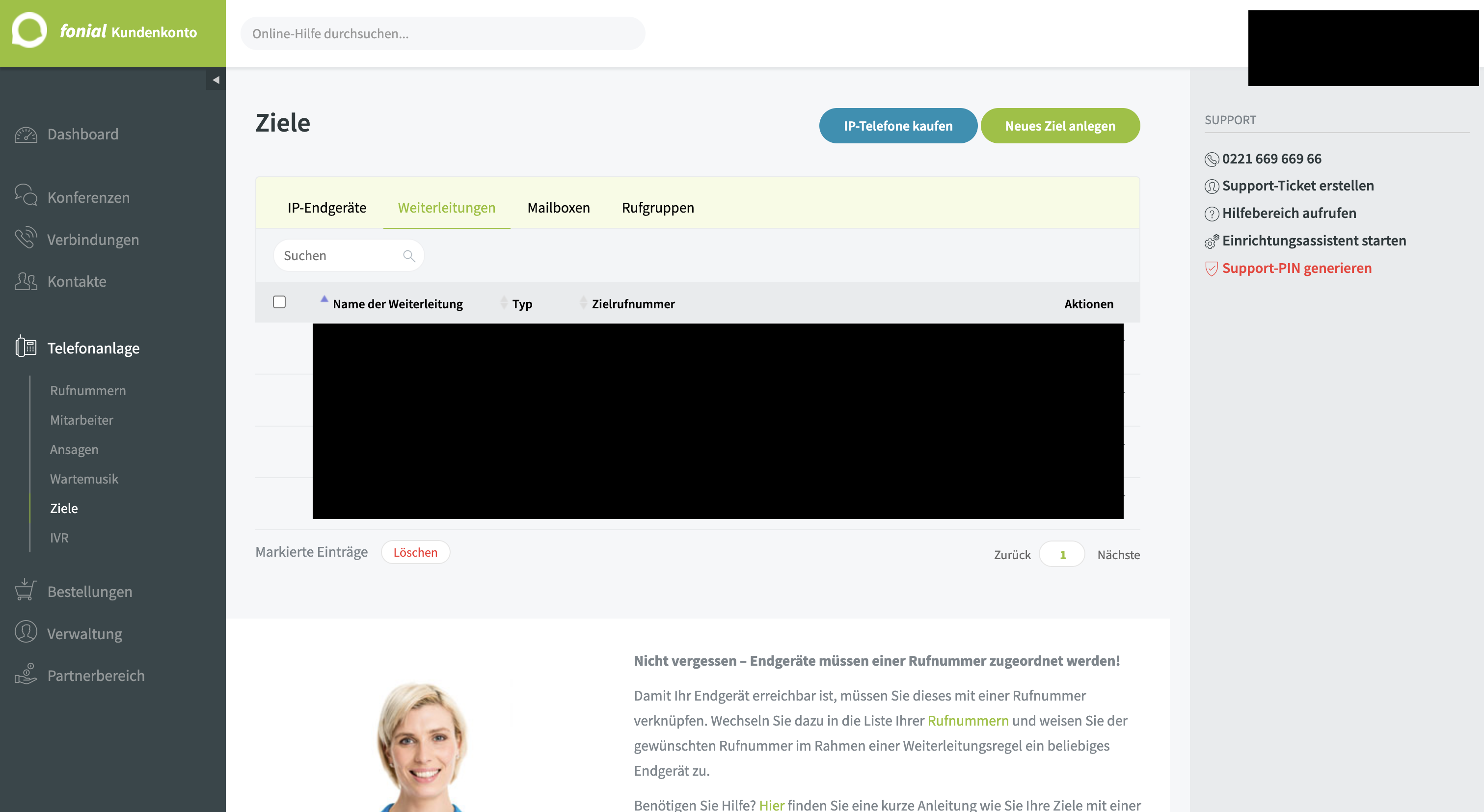
- Navigate to Telefonanlage → Ziele (Phone System → Targets)
- Switch to the Weiterleitungen (Forwards) tab
-
Click Neues Ziel anlegen (Create New Target) in the top right
-
Select the type: Weiterleitung (Mobilfunk, Festnetz, Fax oder SIP-URI) (Forward to Mobile, Landline, Fax or SIP-URI) and fill in the fields:
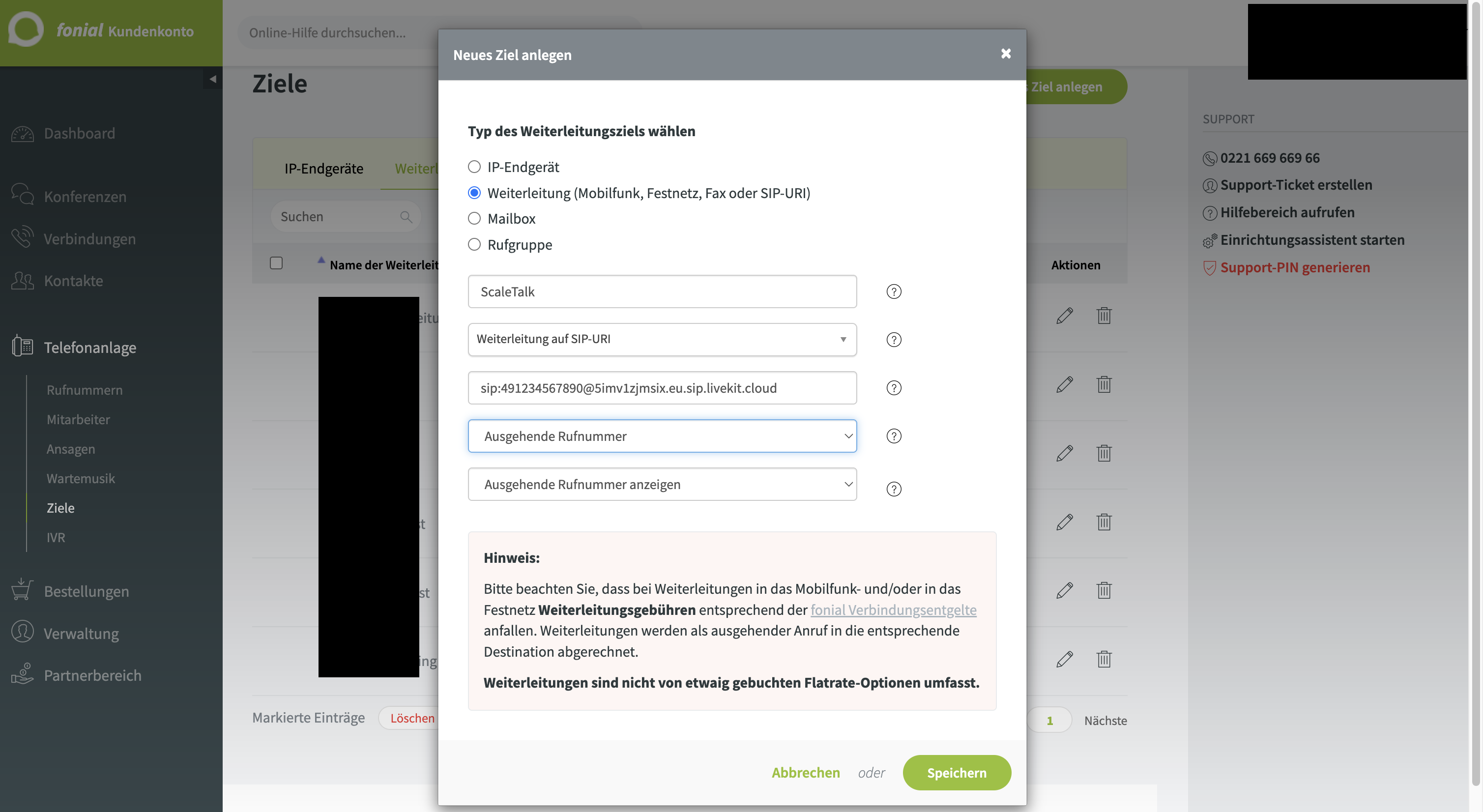
- Fill in the fields:
| Field | Value |
|---|---|
| Name des Weiterleitungsziels (Target name) | Any name you like, e.g. ScaleTalk |
| Weiterleitungstyp (Forward type) | Select Weiterleitung auf SIP-URI (Forward to SIP-URI) — the field below changes to SIP-URI |
| SIP-URI | Paste the Origination URL from ScaleTalk |
| Ausgehende Rufnummer (Outgoing number) | Select the Fonial number you're importing |
| Ausgehende Rufnummer anzeigen (Display number) | Choose the desired display option |
- Click Speichern (Save)
Step 4: Activate Call Forwarding on the Number
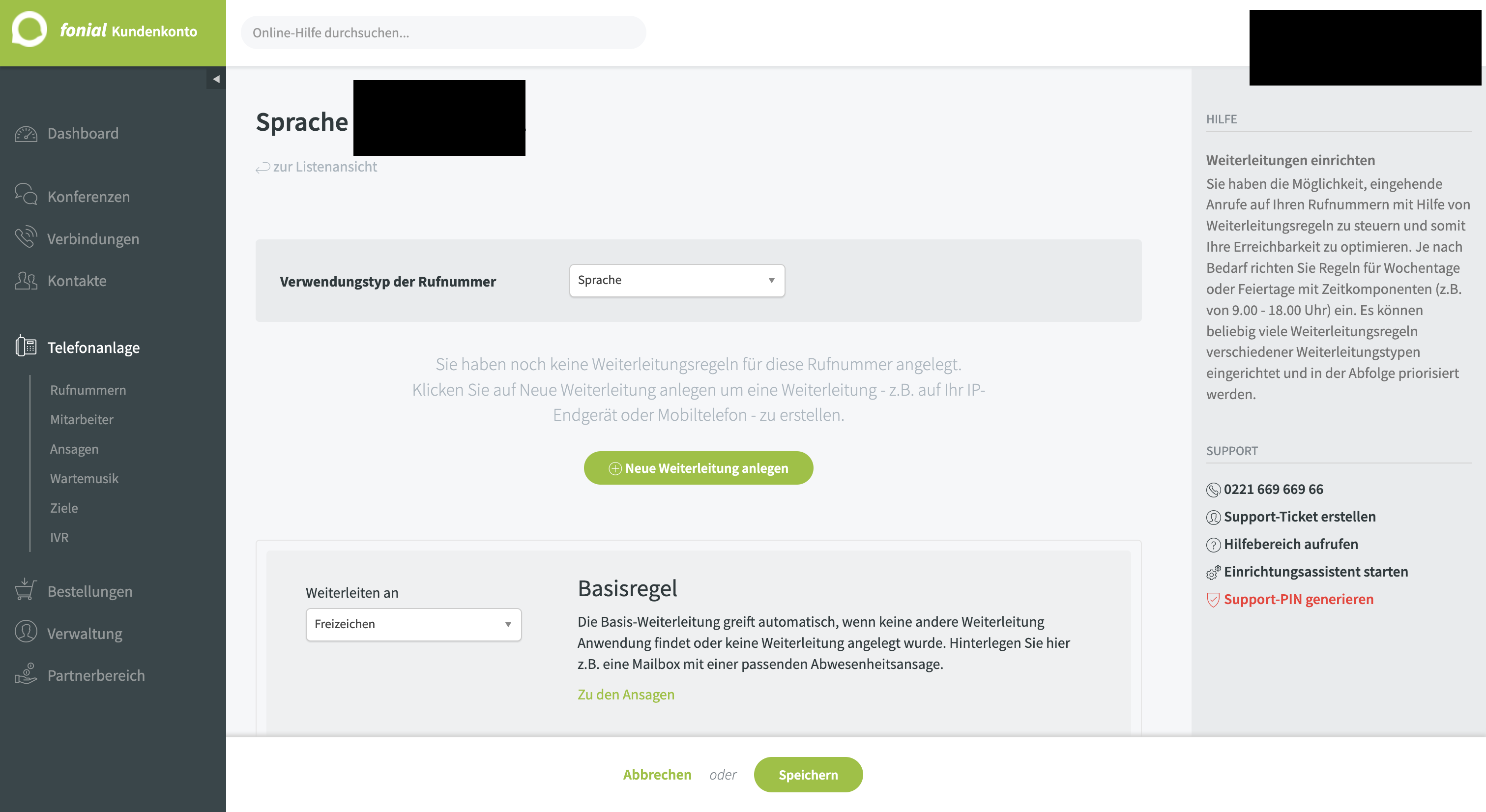
Now you need to configure the Fonial phone number so that incoming calls are forwarded to the ScaleTalk target you just created.
- Go to Telefonanlage → Rufnummern (Phone System → Phone Numbers)
- Click the edit icon (pencil) on the desired number
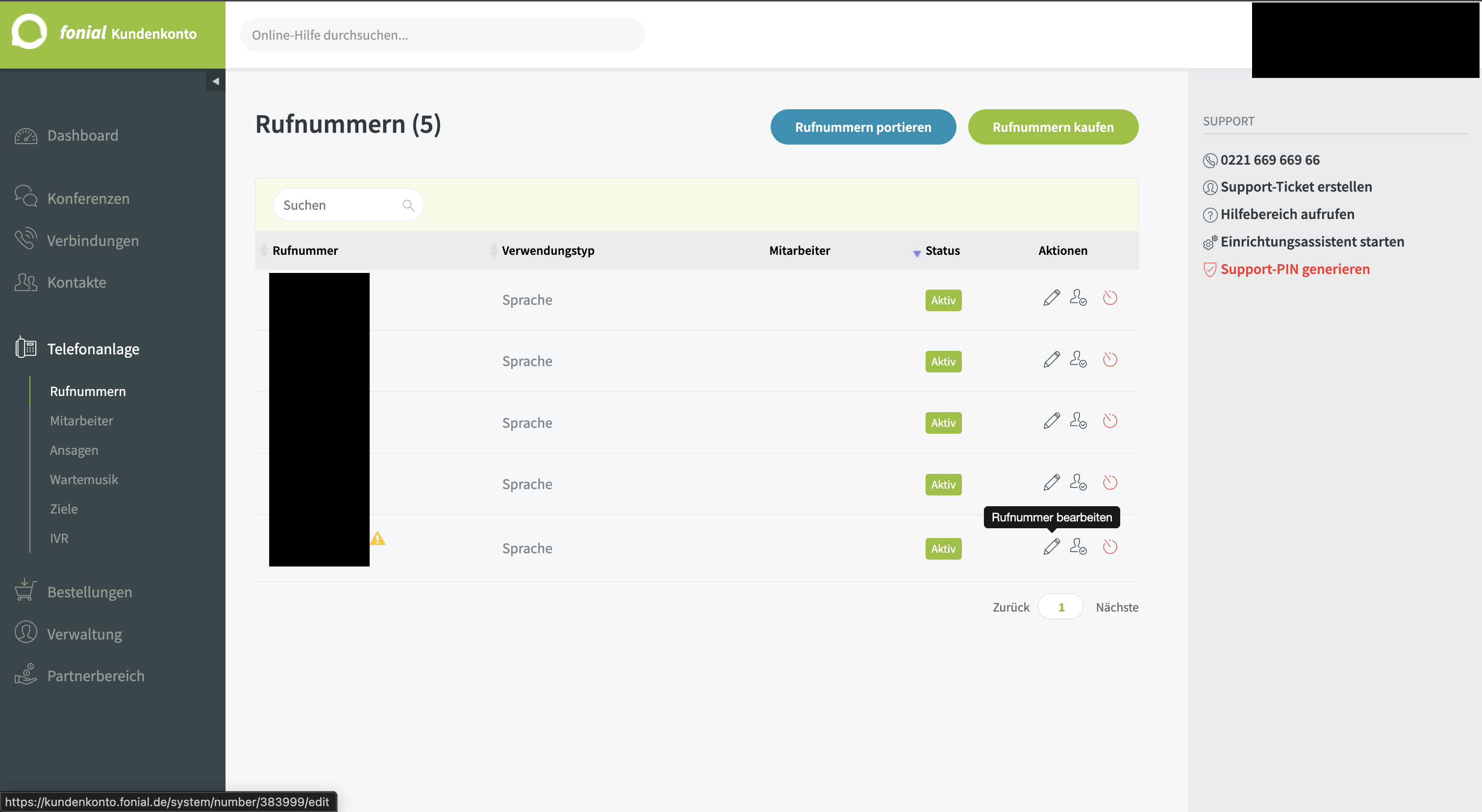
- You now see the phone number configuration. Click Neue Weiterleitung anlegen (Create New Forwarding)
- Under Weiterleitungsziel wählen (Choose Forwarding Target):
- Weiterleiten an (Forward to): Select the target you just created, e.g.
ScaleTalk - für (for): Select
Unbegrenzt(Unlimited)
- Weiterleiten an (Forward to): Select the target you just created, e.g.
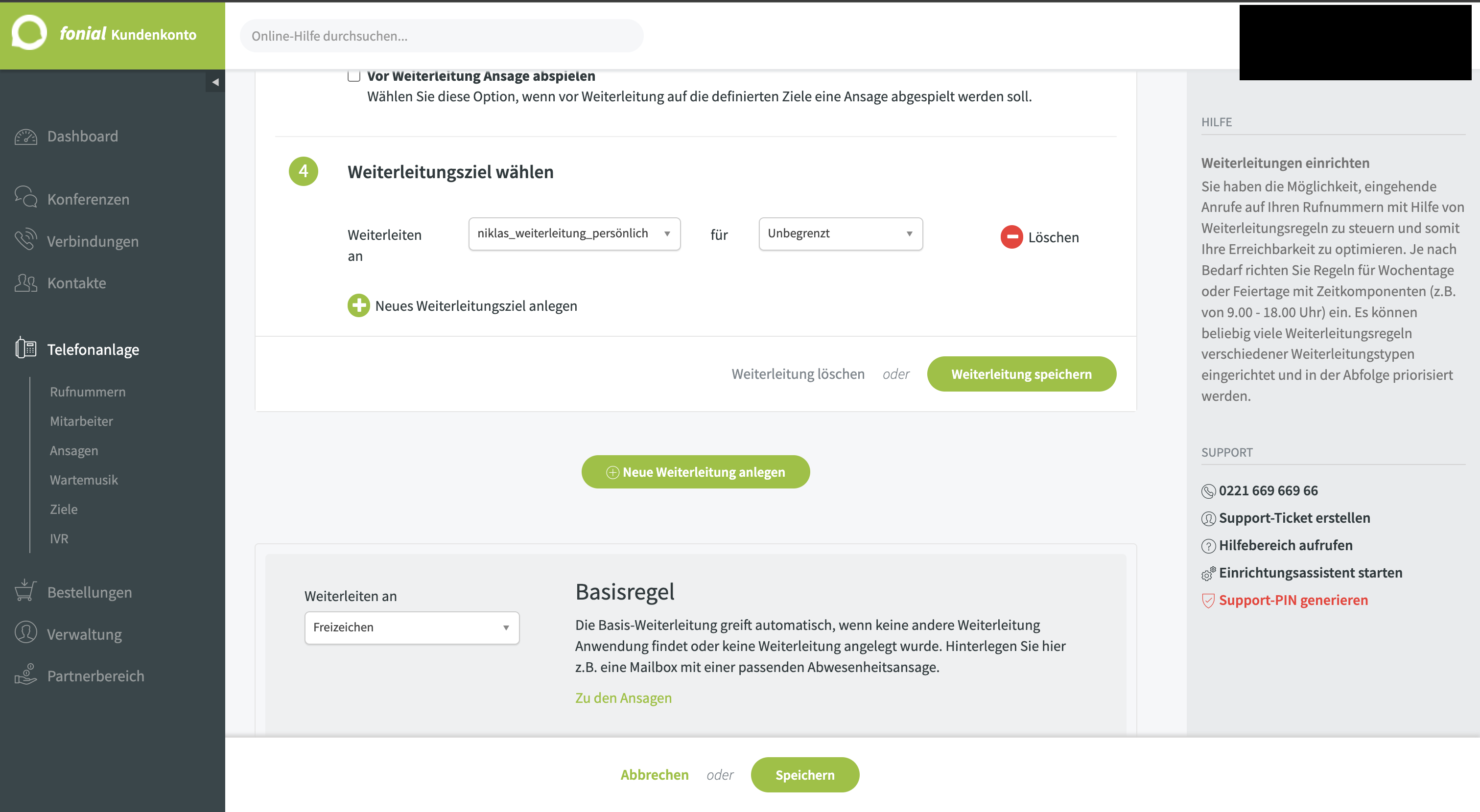
- Click Weiterleitung speichern (Save Forwarding)
- Then click Speichern (Save) at the bottom to apply the entire phone number configuration
No Additional Rules Needed
You don't need to set up any time rules or conditions. Simply select the ScaleTalk target and set it to Unbegrenzt (Unlimited) — all incoming calls will be forwarded directly.
Step 5: Complete the Import in ScaleTalk
Switch back to ScaleTalk — the Fonial import dialog should still be open.
- Click Von Fonial importieren (Import from Fonial)
The number now appears in your Phone Numbers overview with the status Active.
Step 6: Assign an Agent
To have incoming calls answered by your AI agent, you need to assign an agent to the imported number.
- Click the three-dot menu on the number under Actions
- Select Assign Agent
- Choose the desired agent from the list
- Click Assign
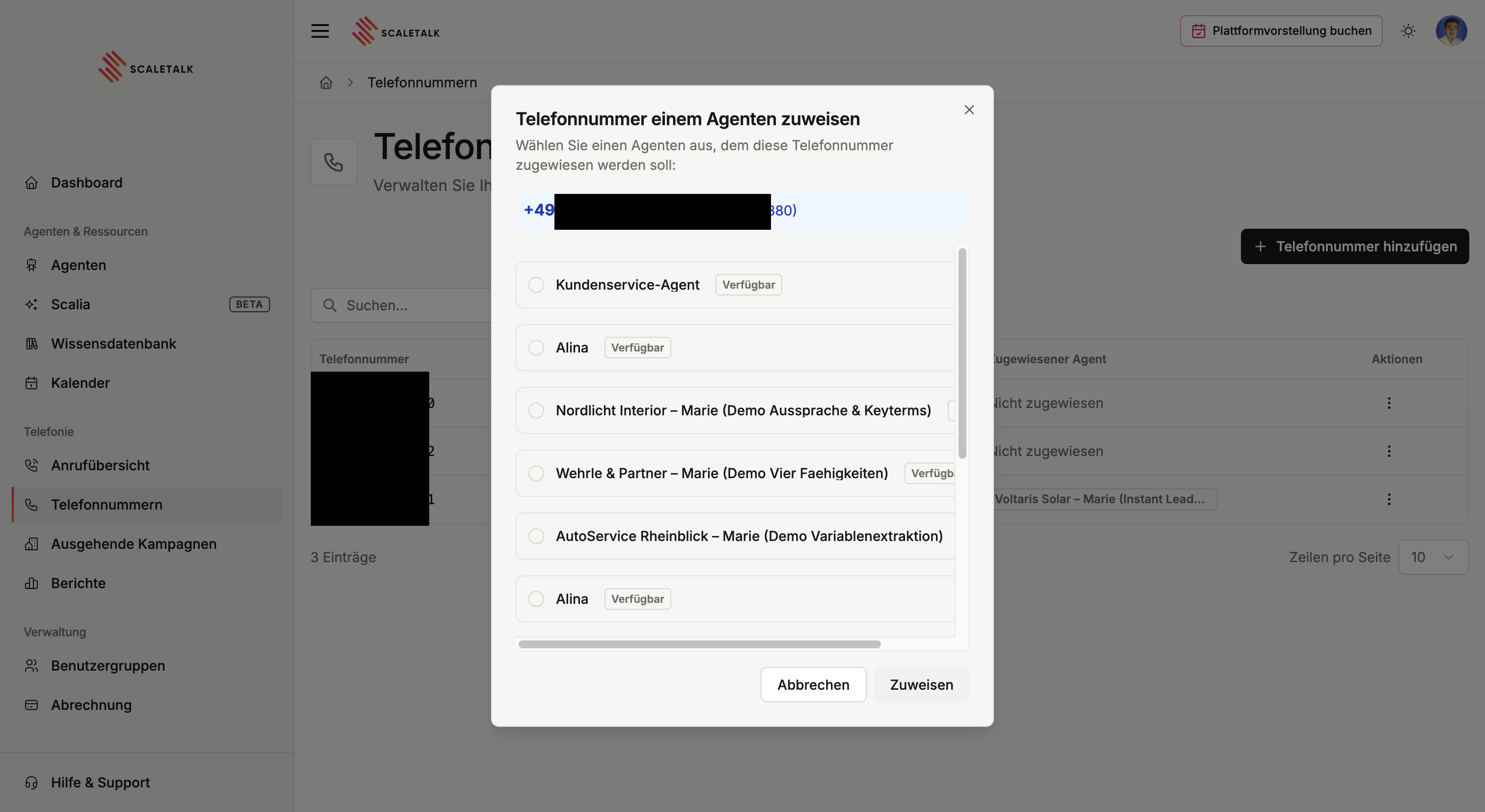
Done! Your Fonial number is now connected to ScaleTalk and incoming calls will be answered by your AI agent.
Summary
| Step | Where | What |
|---|---|---|
| 1 | Fonial | Identify your phone number |
| 2 | ScaleTalk | Start Fonial import, copy Origination URL |
| 3 | Fonial | Create new forwarding target (SIP-URI) |
| 4 | Fonial | Activate call forwarding on the number |
| 5 | ScaleTalk | Complete the import |
| 6 | ScaleTalk | Assign an agent |
Tip
Test the setup by calling the Fonial number. The call should reach your ScaleTalk agent. If not, check the Troubleshooting guide.