Follow-up
Automate emails and webhooks after every call.
After every conversation, ScaleTalk can automatically execute actions. In the Follow-up tab, you define which actions should be triggered after a call. You can use both actions simultaneously — e.g., send an email to your team and update your CRM via webhook in parallel.
Overview
Post-processing consists of two actions, each activated via + Add:
| Action | Purpose |
|---|---|
| Send Email | Automatically send an email with a summary or transcript to defined recipients |
| Webhook | Send call data via HTTP request to an external URL (e.g., CRM, n8n, Zapier) |
You can activate and configure both actions independently.
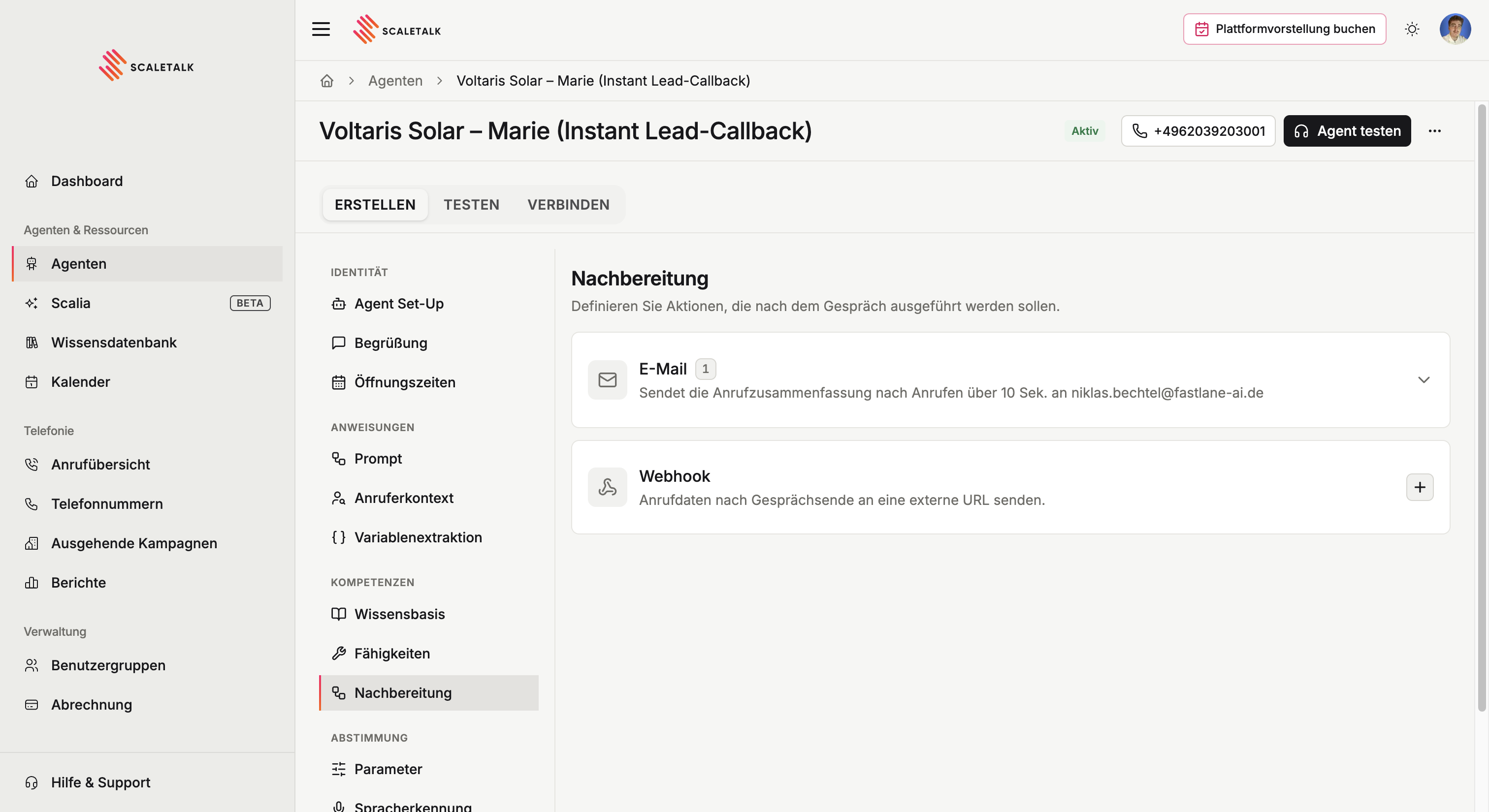
Send Email
Click + Add next to "Send Email" to open the email configuration.
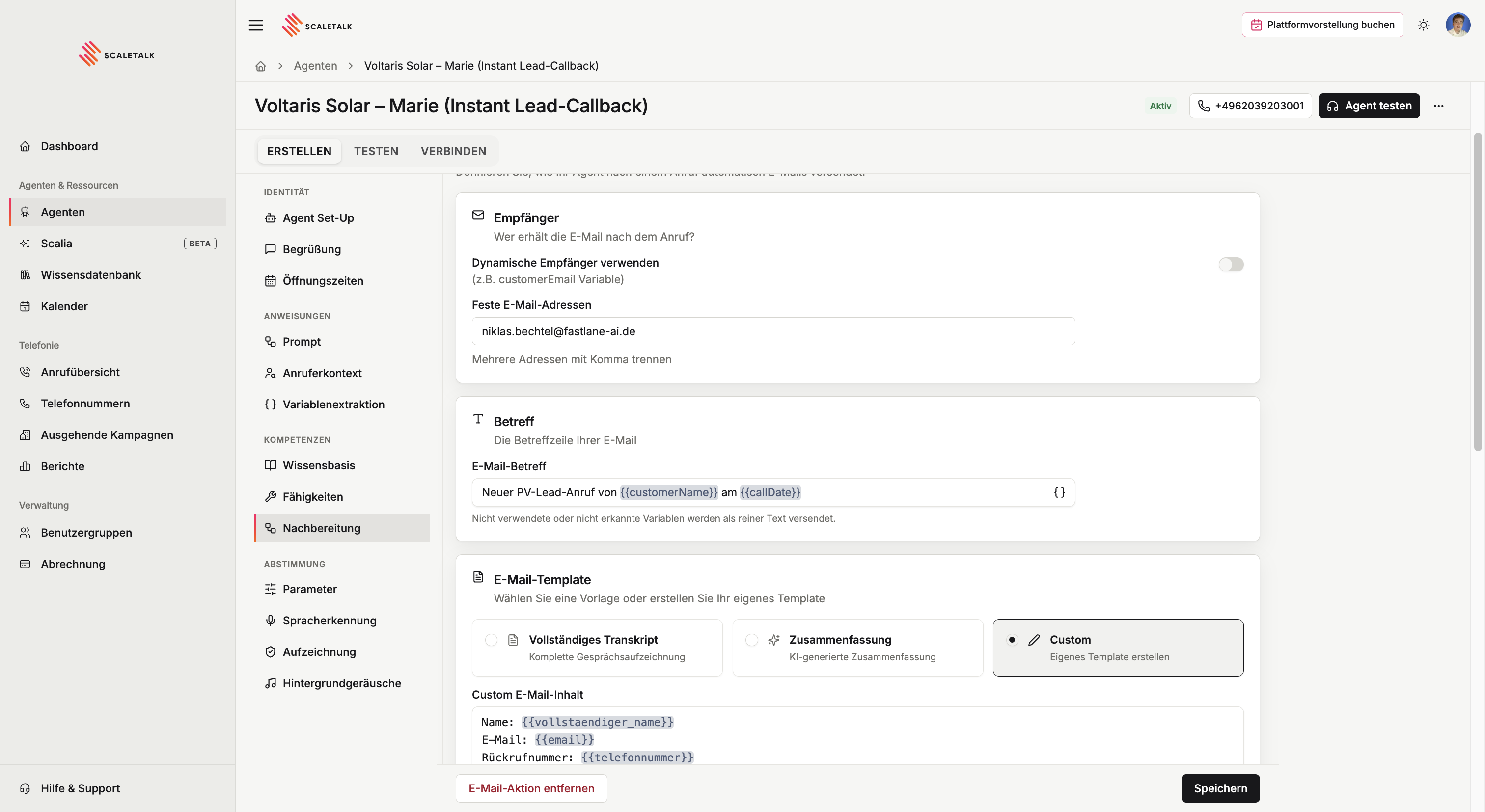
Recipients
Define who should receive the email after the call.
| Field | Description |
|---|---|
| Fixed Email Addresses | One or more email addresses, separated by comma (e.g., support@example.com, team@example.com). Every call goes to the same recipients. |
| Use Dynamic Recipients | Toggle switch. When enabled, a prompt field appears where you define who should receive the email based on the conversation content. |
Dynamic Recipients
When you enable Dynamic Recipients, a prompt field appears directly in the email recipient settings. There you write an instruction that determines the right recipient based on the conversation transcript.
Don't confuse with the system prompt
The recipient prompt is not defined in the system prompt, but directly in the prompt field in the email recipient settings in the Follow-up tab.
Example prompt for dynamic recipients:
Analyze the conversation transcript and identify the responsible
contact based on the topic:
- For technical issues: send to tech@company.com
- For billing questions: send to accounting@company.com
- For product inquiries: send to sales@company.com
- For general inquiries: send to info@company.com
If an email address was mentioned in the conversation, use it preferentially.
Subject
Configure the email subject line.
In the Email Subject field, you can combine fixed text with variables. Click on the variable chips below the field to insert them.
Default variables:
| Variable | Value |
|---|---|
{{assistantName}} | Name of the agent |
{{customerName}} | Name of the caller (if extracted) |
{{callDate}} | Date of the call |
{{callTime}} | Time of the call |
{{fromNumber}} | Phone number of the caller |
Additionally, you can use all extracted variables from Variable Extraction in the subject — e.g., {{Concern}}, {{Company}}, or {{Category}}.
Examples:
| Subject Template | Result |
|---|---|
Summary of your call with {{assistantName}} | Summary of your call with Lisa |
New call: {{customerName}} – {{callDate}} | New call: Mr. Weber – 03/04/2026 |
{{assistantName}}: Call from {{fromNumber}} | Lisa: Call from +491711234567 |
Email Content
Choose from three templates for how the email content is generated:
| Template | Description |
|---|---|
| Full Transcript | The complete conversation recording as text. No AI-generated content. |
| Summary | An AI-generated summary of the conversation. You can control the structure via the summary instructions. |
| Custom | Create your own template — you fully control what goes in the email. Here you can use default and extracted variables. |
Summary Instructions (Optional)
If you choose the Summary template, you can customize how the AI creates the summary here. Example:
Focus on action items and customer requests.
Mention any dates or deadlines discussed.
Format as a numbered list.
If you leave this field empty, a standard summary is generated.
Tip: Optimize Summaries
The more precise your instructions, the more useful the summary. Specifically state which information matters — e.g., "Always include the customer name, the concern, and the next steps."
Custom Template
With the Custom template, you build your own email template. You can use both the default variables (e.g., {{assistantName}}, {{callDate}}) and all extracted variables from Variable Extraction (e.g., {{Name}}, {{Concern}}, {{Company}}).
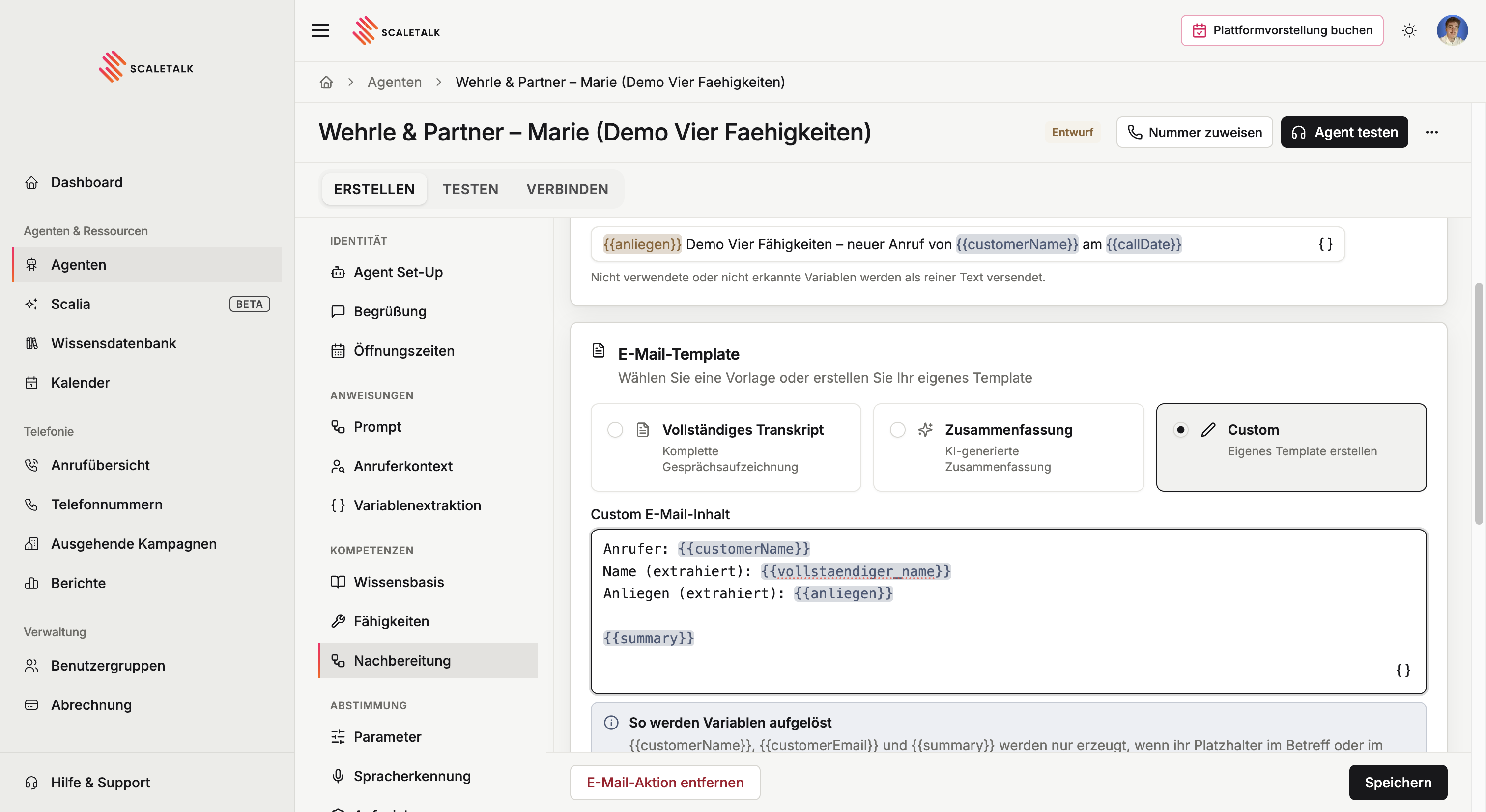
The {} icon on the right of the field opens the list of available variables and inserts them on click — that saves typos in the names.
A template that works well in practice puts the extracted values on top and the summary below:
Caller: {{customerName}}
Name (extracted): {{full_name}}
Request (extracted): {{request}}

{{summary}}
Three variables only exist if you use them
{{customerName}}, {{customerEmail}} and {{summary}} are only produced when their placeholder appears in the subject or the custom content. Leave them out and you get N/A — even when the value came up in the call.
Two more rules:
- A placeholder nothing fills is sent as plain text. A typo in a variable name therefore lands visibly in the email.
- Variables work only in the subject and the custom content — not in the summary instructions. That text is handed to the AI verbatim as an instruction.
At the bottom left, Remove email action deletes the whole email follow-up again. This gives you full control over the email content, allowing you to create, for example, a structured summary with all relevant call data.
Email Settings
Control when emails are sent and what content is included.
| Setting | Description |
|---|---|
| Include Full Transcript in Email | When enabled, the complete conversation transcript is appended below the summary or custom content. |
| Apply Minimum Call Duration | When enabled, emails are only sent for calls that exceed a certain minimum duration. |
| Minimum Call Duration (Seconds) | Define the minimum duration in seconds (e.g., 10). Helps avoid emails for short or empty calls. |
Avoid Spam
Enable the minimum call duration to prevent unnecessary emails from being sent for accidental short calls or empty connections. 10 seconds is a good default.
Preview and test email
Before going live, Show preview renders the email against a sample call — including unsaved changes. Nothing is sent. Caller, timestamps, summary and variable values are sample data.
Send test email sends a real message to your account's address. Check your spam folder too.
The preview also warns you about the four classic misconfigurations:
| Warning | What it means |
|---|---|
| Variables nothing fills | A {{placeholder}} in the subject or body has no match — it goes out as plain text |
| Transcript appears twice | The Full transcript template and the Include transcript option are both on |
| Custom template is empty | The full transcript is sent instead |
| Minimum duration longer than the sample call | For calls that short, no email is sent at all |
The preview needs a saved agent
For the name, extracted variables and branding the preview reads the saved agent. On an agent that has never been saved it stays disabled.
Webhook
With a webhook, you automatically send call data after every conversation to an external URL — e.g., to n8n, Make, Zapier, or directly to your CRM. This way, you can automatically process everything that happened in the conversation.
Click + Add next to "Webhook" to open the webhook configuration.
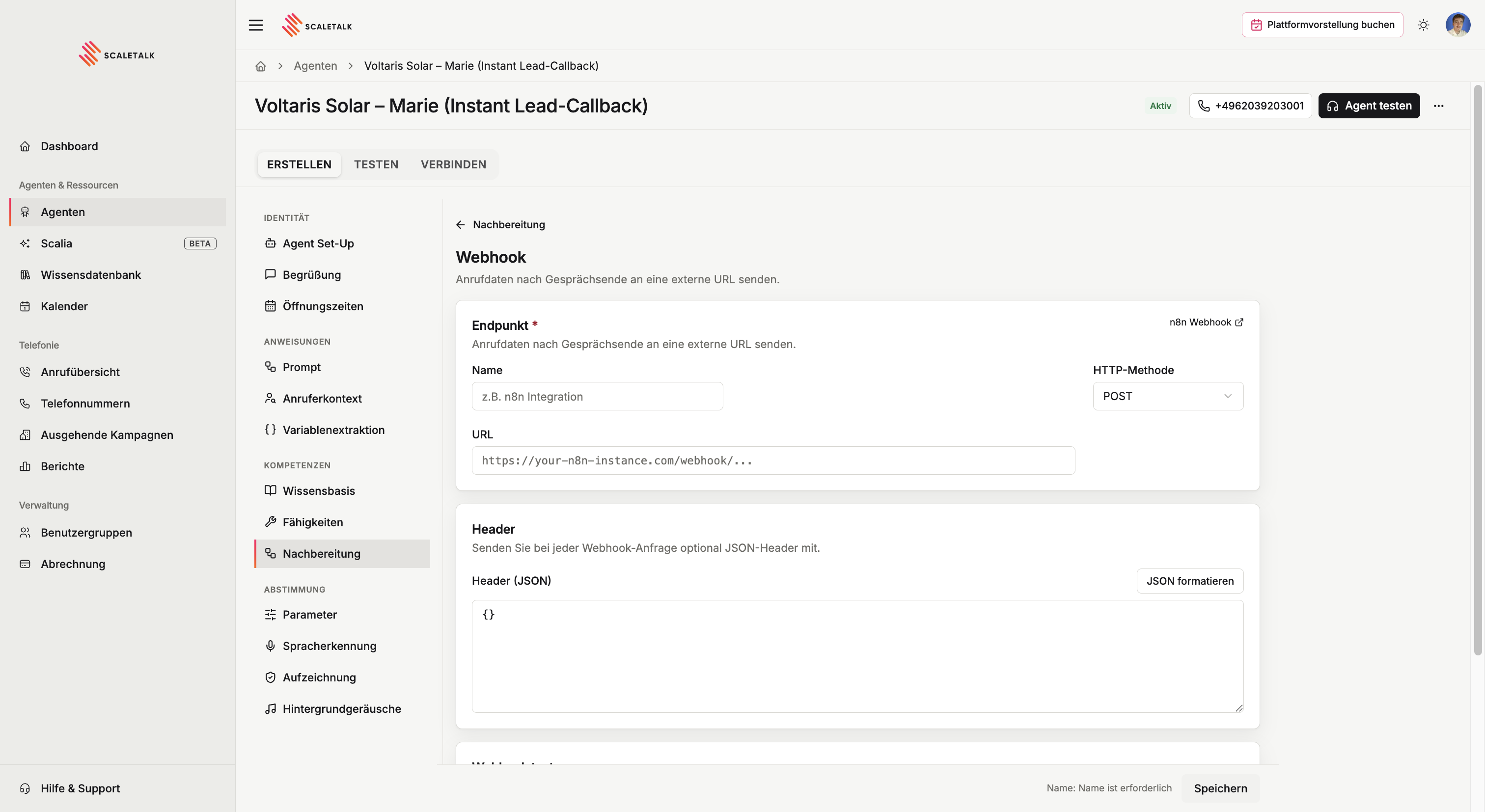
Configuration
| Field | Description |
|---|---|
| Name | Internal name for the webhook (e.g., "n8n Integration"). For overview purposes only. |
| HTTP Method | HTTP method: POST (default), GET, PUT, or DELETE. |
| Headers (JSON) | HTTP headers as a JSON object (e.g., {"Content-Type": "application/json", "Authorization": "Bearer sk-abc..."}). Default: {}. |
| URL | Target URL to which the request is sent (e.g., https://your-n8n-instance.com/webhook/...). |
After configuration, you can test the webhook directly: Click Test Webhook to send a test request to the URL and verify the response.
What Gets Sent?
Once a call is finished, ScaleTalk automatically sends an HTTP request to your URL. The payload contains all relevant call data as JSON:
- Call ID — Unique identifier of the conversation
- Transcript — Full conversation transcript
- Duration — Call duration in seconds
- Summary — The generated conversation summary
- Extracted Variables — All variables from Variable Extraction (e.g., Name, Email, Concern)
- Phone Number — Caller's number
- Timestamp — When the call took place
With this data, you can trigger any actions in your automation tool — e.g., create a CRM entry, open a ticket, or send a Slack message.
Typical Use Cases
- Log calls in a CRM (Salesforce, HubSpot, Pipedrive)
- Automatically create a ticket in Jira, Zendesk, or Freshdesk
- Write lead data to a database or Google Sheet
- Trigger an n8n, Make, or Zapier workflow
Integration with n8n
n8n is an open-source workflow platform and one of the most common methods for processing webhooks. After every call, n8n receives the call data and can trigger any actions with it.
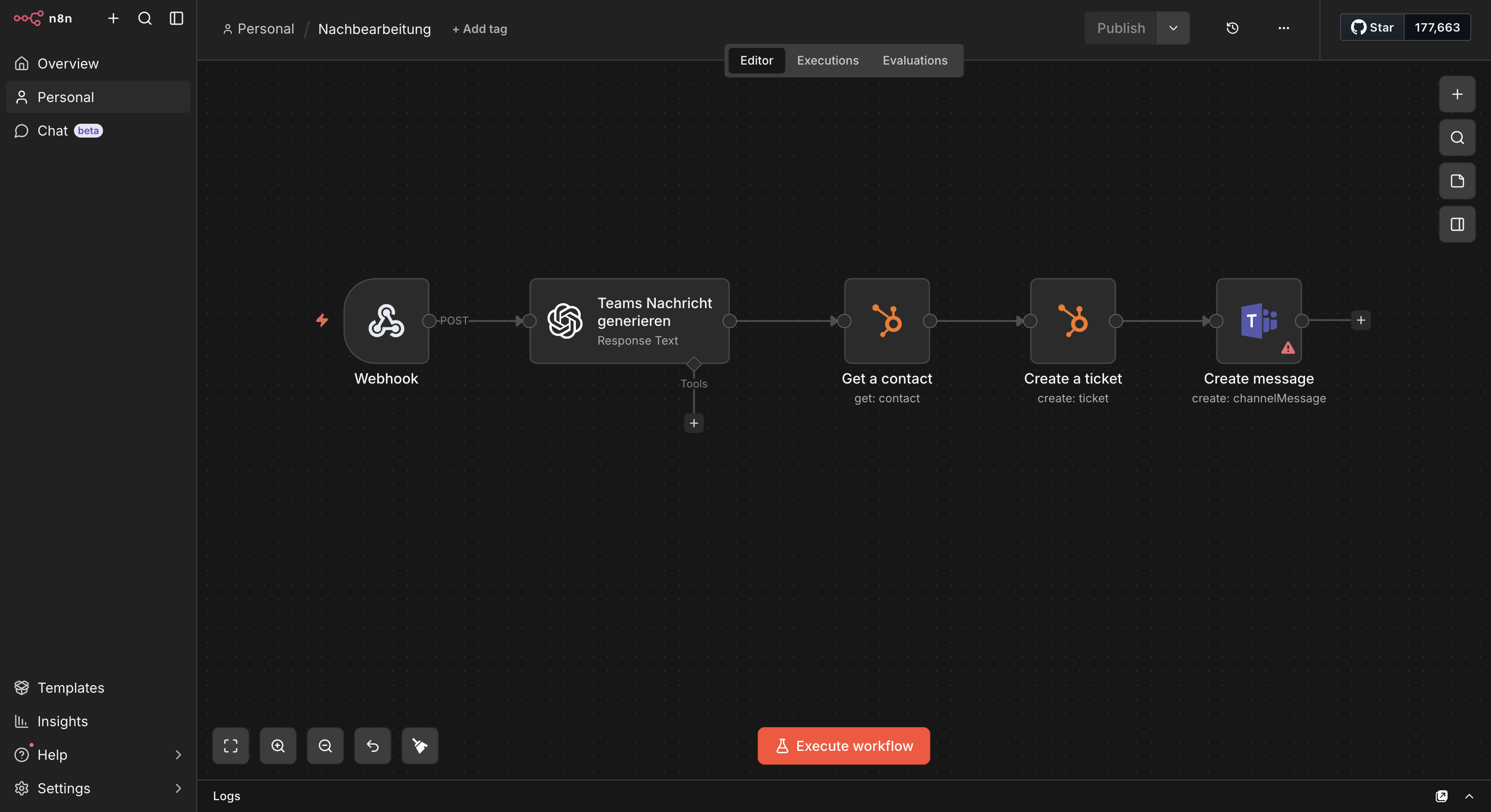
How to connect ScaleTalk with n8n:
- In n8n, create a new workflow with a Webhook node (Method: POST)
- Copy the Production URL of the Webhook node
- Enter the URL in ScaleTalk under Follow-up > Webhook > URL
- Click Test Webhook in ScaleTalk to verify the connection works
- Add your processing logic in n8n
Example Workflow: Teams Notification + HubSpot Ticket
After every call, the following should happen automatically:
- A Microsoft Teams notification is sent to the relevant channel
- A ticket in HubSpot is created with the call data
Webhook > Set (map fields) > Teams (send message)
                            > HubSpot (create ticket)
In the Set node, map the fields from the payload:
Name       > {{ $json.variables.Name }}
Company    > {{ $json.variables.Company }}
Concern    > {{ $json.variables.Concern }}
Category   > {{ $json.variables.Category }}
Phone      > {{ $json.variables.Phone }}
Date       > {{ $now.format('dd.MM.yyyy HH:mm') }}
Duration   > {{ $json.duration }} seconds
This way, your team gets an instant notification in Teams and the customer is automatically logged as a ticket in the CRM — with no manual effort.
Use the Production URL
Always use the Production URL from n8n — not the test URL. Test the webhook before going live via the Test Webhook button in ScaleTalk.
Multiple Actions in Parallel
You can use email and webhook simultaneously. Example: Your team gets the email summary AND at the same time a ticket is created in the CRM and Slack is notified.
Complete Example
Both actions for a fictional trade business:
Send Email:
| Setting | Value |
|---|---|
| Fixed Email Addresses | info@meister-betrieb.de |
| Email Subject | New call: {{customerName}} – {{callDate}} |
| Email Content | Summary |
| Summary Instructions | Focus on concern, mentioned dates, and next steps |
| Include Full Transcript | Yes |
| Minimum Call Duration | 10 seconds |
Webhook:
| Setting | Value |
|---|---|
| Name | n8n CRM Integration |
| HTTP Method | POST |
| URL | https://n8n.meister-betrieb.de/webhook/abc-123 |
Result: The team receives an email with a summary and transcript. At the same time, the call is logged in a Google Sheet and Slack is notified.