API Request
Connect your agent to external systems via HTTP request during the conversation.
API Request (During-Call)
With during-call API Requests, your agent can send HTTP requests to external systems during an ongoing conversation. This connects your agent with CRMs, ticket systems, databases, or any backends — in real time.
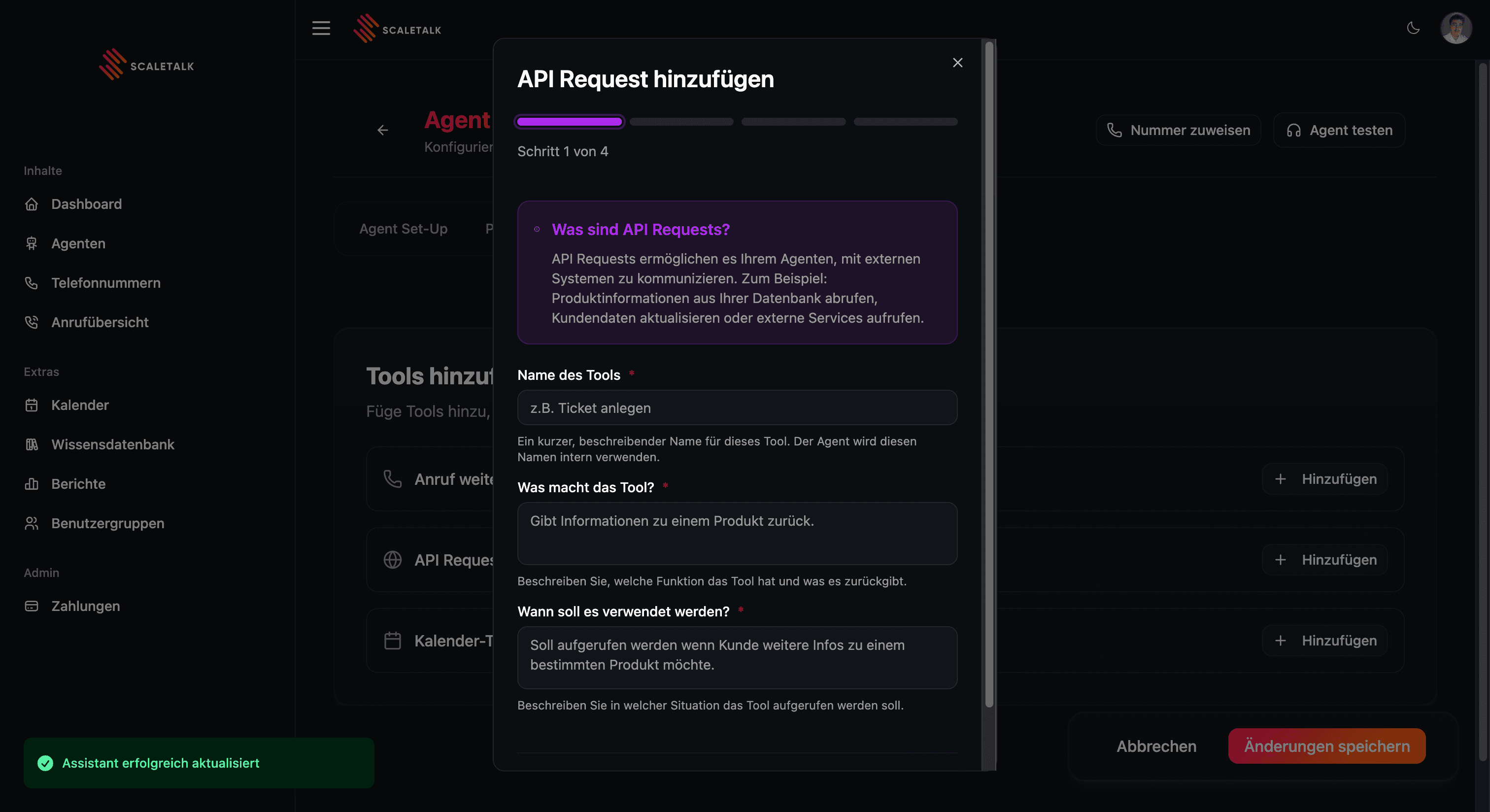
Typical use cases:
- Automatically create a support ticket while the caller is still on the phone
- Retrieve customer status or order information from a CRM
- Trigger appointment confirmation via SMS through an external service
- Write lead data directly to a CRM or database
How It Works
- You configure an API Request in the Capabilities tab of your agent
- You describe to the model in the Description when and why it should call this tool
- During the conversation, the agent recognizes the right moment and sends the request
- The response from the external system is returned to the agent
- The agent uses the response in the conversation (e.g., "Your ticket has been created")
The caller doesn't notice any of this — the conversation continues seamlessly for them.
Configuration
Each API Request consists of the following fields:
| Field | Description |
|---|---|
| Name | Internal tool name. Short and descriptive, no spaces (e.g., create_ticket, check_status) |
| URL | Target URL to which the request is sent (e.g., an n8n webhook URL) |
| Method | HTTP method: POST (default), GET, PUT, or DELETE |
| Timeout | Maximum wait time in milliseconds. Default: 10,000ms (10 seconds) |
| Headers | HTTP headers as key-value pairs (e.g., Content-Type, API keys) |
| Parameters | JSON schema that defines the request parameters. The model fills these automatically from the conversation context |
| Description | Free text for the model: WHEN and WHY the tool should be called. The most important field |
Parameters (JSON Schema)
In the Parameters field, you define as a JSON schema which data the agent should extract from the conversation and include in the request. The model fills these fields automatically based on the conversation context.
Example: Create Support Ticket
{
  "type": "object",
  "properties": {
    "caller_name": {
      "type": "string",
      "description": "Full name of the caller"
    },
    "company": {
      "type": "string",
      "description": "Company name of the caller, if mentioned"
    },
    "issue_summary": {
      "type": "string",
      "description": "Summary of the problem in 1-2 sentences"
    },
    "priority": {
      "type": "string",
      "enum": ["low", "medium", "high"],
      "description": "Urgency: low, medium, or high"
    },
    "callback_number": {
      "type": "string",
      "description": "Callback number of the caller"
    }
  },
  "required": ["caller_name", "issue_summary", "priority"]
}
The model automatically recognizes the appropriate values during the conversation: When the caller says "This is Mr. Mueller from Weber GmbH, our server has been unreachable since this morning," the model fills caller_name, company, and issue_summary on its own.
More Examples
Query customer status (GET):
{
  "type": "object",
  "properties": {
    "customer_id": {
      "type": "string",
      "description": "Customer number of the caller"
    }
  },
  "required": ["customer_id"]
}
Send lead data to CRM (POST):
{
  "type": "object",
  "properties": {
    "name": { "type": "string", "description": "Name" },
    "email": { "type": "string", "description": "Email" },
    "phone": { "type": "string", "description": "Phone number" },
    "interest": { "type": "string", "description": "What the caller is interested in" }
  },
  "required": ["name", "phone"]
}
Tip: Create JSON Schema with AI
Describe in ChatGPT, Claude, or Gemini what data you want to transmit — the AI will generate the matching schema in seconds.
Description for the Model
The Description field is critical. Here you explain to the model in natural language when it should call the tool. The more precise the description, the more reliable the invocation.
Call this tool after the caller has described their problem
and you have collected the key information
(name, problem, urgency).

Do NOT call it before you have fully understood the concern.

If the request is successful, confirm to the caller:
"I have created a ticket for you. Our team
will get back to you shortly."

If the request fails, say:
"Unfortunately, I was unable to create the ticket right now.
I'll forward your concern manually."
Define Success and Error Cases
ALWAYS describe what the agent should say on success AND on failure. Without an error case, the agent goes silent when the API doesn't respond.
Additionally, you should reference the tool behavior in the system prompt, e.g.:
### If the customer reports a technical problem:
1. Listen to the problem completely.
2. Summarize it in your own words.
3. Ask for name and callback number.
4. Create the support ticket via the tool.
5. Confirm: "I have created a ticket for you."
Integration with n8n
The most common method for API Requests is via n8n — an open-source workflow automation platform. n8n receives the request, processes the data, and returns a response.
Flow
- In n8n, create a Webhook node (Method: POST) — it generates a URL
- Enter this URL in ScaleTalk in the URL field
- When the agent triggers the request, ScaleTalk sends the data to n8n
- n8n processes the data (e.g., create ticket, update CRM)
- n8n sends a response back, which the agent uses in the conversation
Setting Up an n8n Workflow
Step 1: Create a Webhook Node
Create a new workflow and add a webhook as the first node. Select the method POST and copy the generated Production URL.
Step 2: Process Data
A typical workflow looks like this:
Webhook > Prepare data > Create ticket > Respond to WebhookStep 3: Send Response Back
The last node must be a Respond to Webhook node. The response is returned to the agent:
{
  "success": true,
  "ticket_id": "TK-20260218-042",
  "message": "Ticket successfully created"
}
The agent can use this response in the conversation: "I have created ticket TK-20260218-042 for you."
Use the Production URL
Make sure to use the Production URL from n8n — not the test URL. Test the webhook before going live, e.g., via Postman or curl.
Headers and Authentication
In the Headers field, you configure HTTP headers as key-value pairs:
| Header | Example Value |
|---|---|
Content-Type | application/json |
Authorization | Bearer sk-abc123xyz... |
X-API-Key | my-secret-api-key |
Security Note
API keys are stored encrypted in ScaleTalk. For n8n webhooks, authentication is typically not required, as the webhook URL itself serves as the key.
Practical Example: Support Ticket via n8n
A complete example of an agent that automatically creates a support ticket during the conversation:
| Field | Value |
|---|---|
| Name | create_support_ticket |
| URL | https://n8n.mycompany.com/webhook/abc-123-xyz |
| Method | POST |
| Timeout | 10000 |
| Headers | Content-Type: application/json |
Parameters: See the JSON schema in the section above (caller_name, company, issue_summary, priority, callback_number).
Description:
Use this tool to create a support ticket.
Call it AFTER you have fully understood the concern
and collected the key data.

If successful: Confirm to the caller that a ticket
was created and someone will get back to them.

If failed: Say that you will forward the concern
manually.
Tips and Troubleshooting
Best Practices
- Choose timeout appropriately: 10 seconds for most cases, increase to 20-30 seconds for slow APIs
- Always define error cases: Without an error case, the agent goes silent on API problems
- Few, precise parameters: The fewer parameters, the more reliable the extraction
- Descriptions in the schema: Every field needs a
description— without it, the model doesn't know what to fill in - Reference in system prompt: Explicitly state in the conversation flow when the tool should be called
Common Problems
| Problem | Solution |
|---|---|
| Agent doesn't call the tool | Make the description more precise. Explicitly reference the tool in the system prompt |
| Agent calls the tool too early | Clearly define in the description which data must be collected BEFOREHAND |
| Fields are sent empty | Ensure the description in each schema field is meaningful |
| Timeout error | Increase the timeout value. Check if the webhook is reachable |
| Webhook doesn't respond | Check in n8n: Is the workflow active? Is it the Production URL? |
| Wrong data in the ticket | Improve schema descriptions. Consider restricting with enum values |
Referencing in the Prompt
In addition to the tool configuration and the Description in the tool itself, you should also define in the system prompt when the agent should call the API Request. Always mention the exact tool name (e.g., create_ticket or "OrderStatus").
Example:
### If the customer reports a technical problem:
1. Listen to the problem completely.
2. Summarize it in your own words.
3. Ask for name and callback number.
4. Create the support ticket via the API Request "create_ticket".
5. Confirm: "I have created a ticket for you.
   Our team will get back to you shortly."
6. If the API Request fails:
   "Unfortunately, I was unable to create the ticket right now.
   I'll forward your concern manually."
More information can be found in the Prompting Guide.