Calendar Tools
Configure appointment booking in the Capabilities tab of your agent.
Calendar Tools
With Calendar Tools, your agent can check availability and book appointments directly in the calendar — all during the phone call.
Prerequisite: Connect a Calendar
Before you can enable Calendar Tools for an agent, you must first connect your Google or Outlook calendar with ScaleTalk. This is not done here in the agent configurator, but in the separate Calendar menu item in the sidebar.
Connect First, Then Configure
Without a connected calendar, you cannot create a calendar assignment here. Connect your calendar first via the sidebar under Calendar.
Guides for connecting calendars:
Creating a Calendar Assignment
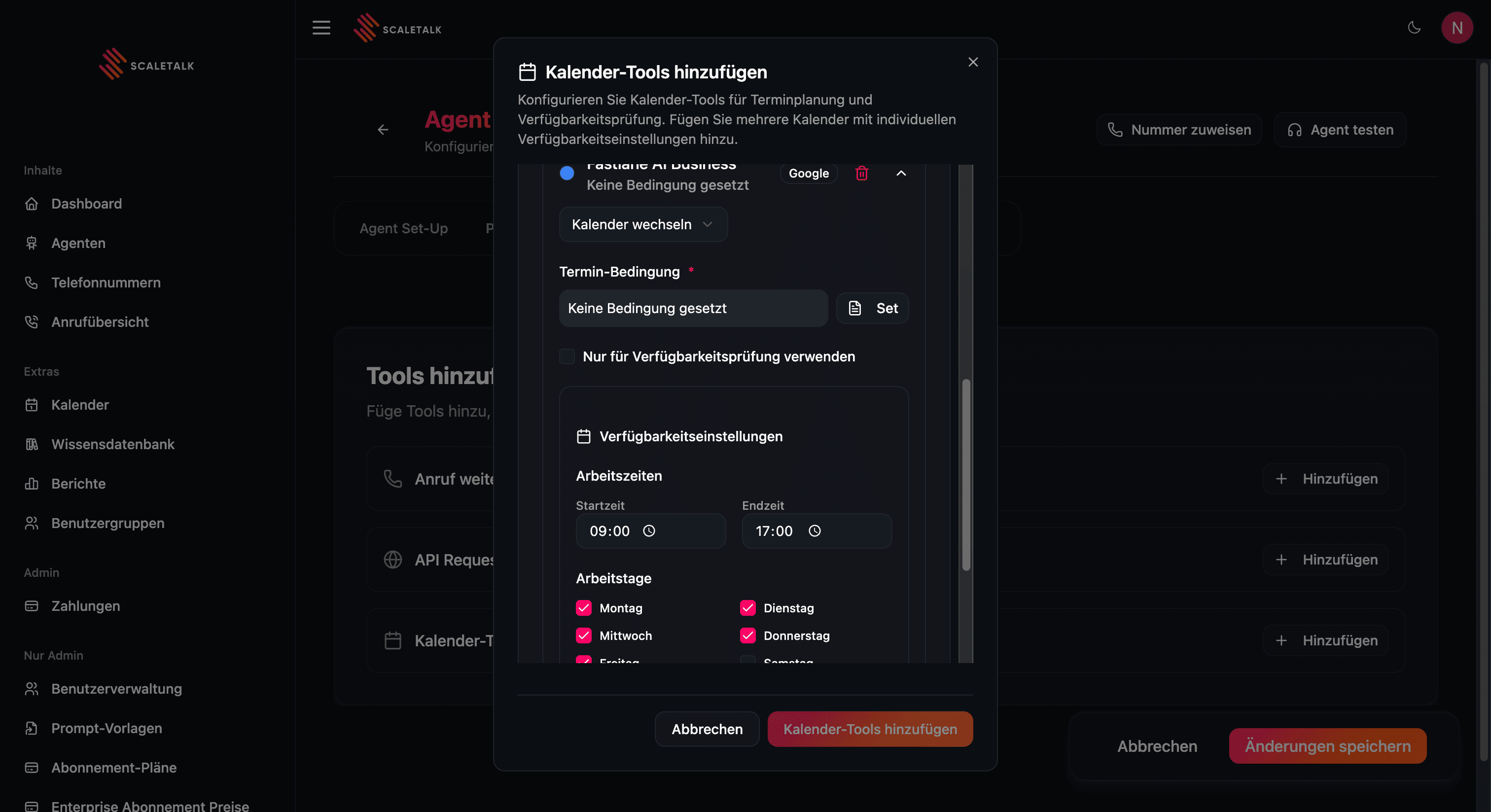
Once your calendar is connected, you can create a calendar assignment in the Capabilities tab of your agent. A calendar assignment links a connected calendar with scheduling rules for your agent.
How To
- Open your agent and go to the Capabilities tab
- Click + Add next to Calendar Tools
- Select one of your connected calendars from the dropdown list
- Configure the assignment settings (see below)
- Click Add to save
Configuration in the Capabilities Tab
In the UI, you configure the following settings per calendar assignment:
| Setting | Description |
|---|---|
| Calendar | Which connected calendar is used |
| Appointment Condition | A description that tells the agent when this calendar should be used |
Appointment Condition
The Appointment Condition is the most important parameter. It tells the agent in natural language when to use this specific calendar. This is especially important when you have multiple calendar assignments.
Examples:
Use this calendar when the caller wants a consultation appointment.Use this calendar for service appointments and repair requests.Use this calendar for urgent emergency appointments.If you only have one calendar assignment, a simple condition like: "Use for all appointment requests." is sufficient.
Multiple Calendar Assignments
You can create multiple calendar assignments for one agent. The agent automatically selects the right calendar based on the appointment condition.
Defining Details in the Prompt
Important: Appointment Details Belong in the Prompt
Appointment duration, buffer time, and description of the appointment type cannot be configured in the UI. You must define these details in the system prompt so the agent knows how to use the Calendar Tools.
The tool configuration alone is not enough — you must define exactly in the system prompt:
- Appointment duration — How long an appointment should be (e.g., 30 minutes, 60 minutes)
- Buffer time — How much spacing the agent should plan between appointments
- Description — What should be written in the calendar entry
- When — In which situations the agent should use the Calendar Tools
- Flow — Which information the agent should collect before booking
Always mention the exact tool name "Calendar Tools" in the prompt.
Example Prompt
### Appointment Booking

Appointments last 30 minutes. Plan at least
15 minutes of buffer between appointments.

### If the customer wants to book an appointment:
1. Ask which service is desired.
2. IMPORTANT: Do NOT ask "When would you like to come?"
   Instead, immediately search for the next available slot
   via the Calendar Tools.
3. Offer the slot AND mention the price.
4. If customer says YES:
   - Ask for first name, last name, phone number.
   - Book the appointment via the Calendar Tools.
   - Enter as appointment description: "[Service] – [Name]"
5. If customer says NO:
   - Search for the next available slot after that.
Example with Multiple Appointment Types
If you offer different appointment types, define the differences in the prompt:
### Appointment Types

The following appointment types are available:
- Initial consultation: 60 minutes, free of charge
- Follow-up: 15 minutes
- Treatment: 45 minutes, price depends on the service

Ask the customer first what it's about, then search for
the appropriate available slot via the Calendar Tools.

Plan at least 15 minutes of buffer between all appointments.
More information on prompting can be found in the Prompting Guide.