Google Calendar
Connect Google Calendar to enable AI-powered appointment booking during calls.
Connect your Google Calendar so your AI agents can check availability and book appointments during phone calls.
Prerequisites
- A Google account with Google Calendar enabled
- Access to the ScaleTalk Calendar page (personal context only)
Personal Context Only
Calendar connections are made in your personal context. Switch to personal context (not a User Group) before connecting your calendar.
Connecting Google Calendar
- Navigate to Calendar in the sidebar
- Click Connect Google Calendar in the top-right area
- A Google sign-in window opens
- Sign in with your Google account (or select an existing session)
- Review the permissions ScaleTalk requests
- Click Allow to grant calendar access
- You are redirected back to ScaleTalk with a success confirmation
Permissions Requested
ScaleTalk requests the following Google Calendar permissions:
| Permission | Purpose |
|---|---|
| View calendar events | Check availability for appointment scheduling |
| Create calendar events | Book appointments on your behalf during calls |
| View calendar settings | Read your working hours and time zone |
ScaleTalk does not read event details beyond what is necessary for availability checking. Event titles and attendee lists of existing events are not accessed.
After Connecting
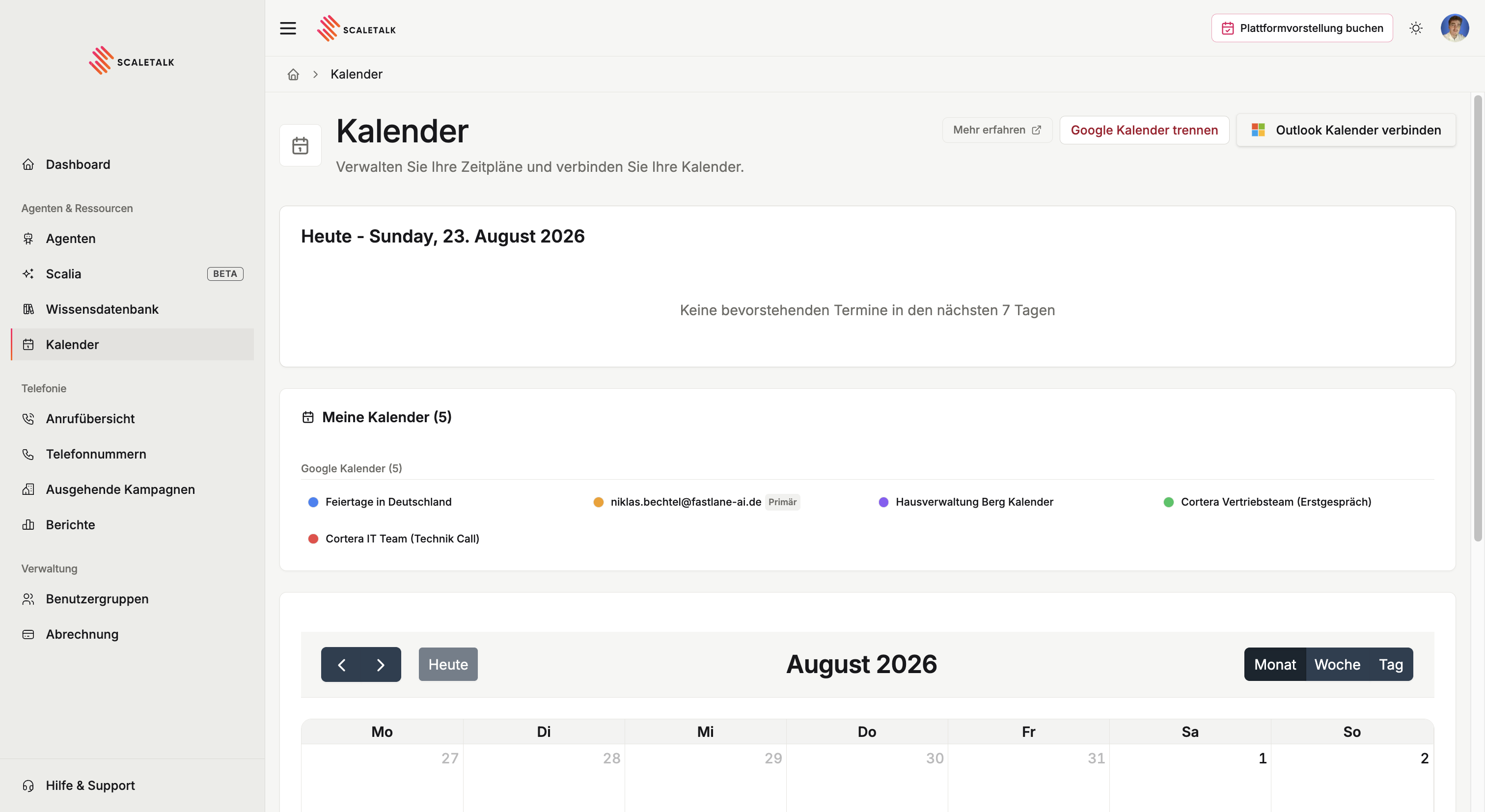
Once connected, your calendar page shows:
- Upcoming appointments from your Google Calendar in the "Today" section
- Monthly calendar view with your appointments displayed
- A Disconnect Google button replaces the connection button
Calendar Views
Switch between views using the buttons in the top right of the calendar widget:
| View | Description |
|---|---|
| Month | Full month overview with appointment indicators |
| Week | Detailed week view showing time slots |
| Day | Single day view with hourly breakdown |
Use the arrow buttons and the Today button to navigate between dates.
Using Google Calendar with Agents
After connecting, you still need to activate the calendar in the Agent Configurator. There you create a calendar assignment with an appointment condition, working hours, and buffer time.
For a complete guide, see Configure Calendar Tools in the Agent.
Disconnecting
To disconnect the Google Calendar connection:
- Navigate to Calendar in the sidebar
- Click Disconnect Google (red text button)
- Your calendar connection is removed immediately
Active Agents
If agents use the calendar tools with your Google Calendar, disconnecting will disable their appointment scheduling capability. Update those agents before disconnecting.
Troubleshooting
Connection Fails
- Ensure pop-ups are not blocked (the Google sign-in opens in a new window)
- Try a different browser if the OAuth window does not appear
- Clear your browser cache and try again
Calendar Not Syncing
- Appointments may take a few seconds to appear after connecting
- Refresh the page to force a calendar sync
- Verify your Google Calendar has appointments in the current time range
Token Expired
Google OAuth tokens can expire after extended periods of inactivity. If you see connection errors:
- Disconnect the calendar
- Reconnect by clicking Connect Google Calendar again
- Re-authorize the permissions