Calendar tools
Let the agent check availability and book appointments — live, during the call.
With calendar tools the agent checks free time in your Google or Outlook calendar during the call and writes the appointment straight into it.
Prerequisite: connect a calendar
Before you can enable calendar tools, a calendar has to be connected to ScaleTalk. That happens under Calendar in the sidebar, not inside the agent.
The agent is only handed the calendar tools when both are true: the calendar tool is enabled on the agent and your account has a connected calendar. If either is missing, the tools do not exist for the agent at all — so it cannot invent a booking with no calendar behind it.
What the agent can do
| Ability | Used for |
|---|---|
| Look up a day's free time | "What do you have free on Thursday?" |
| Check one specific slot | Before the agent promises a time |
| Create the appointment | The booking itself |
| Name the target calendar | "Which colleague would that be with?" |
The caller's calendar is never touched
The agent only ever reads your connected calendars, never the caller's. And it sees only free/busy there — no appointment titles, no attendees. A caller cannot get the agent to reveal what is in your calendar.
Adding calendars
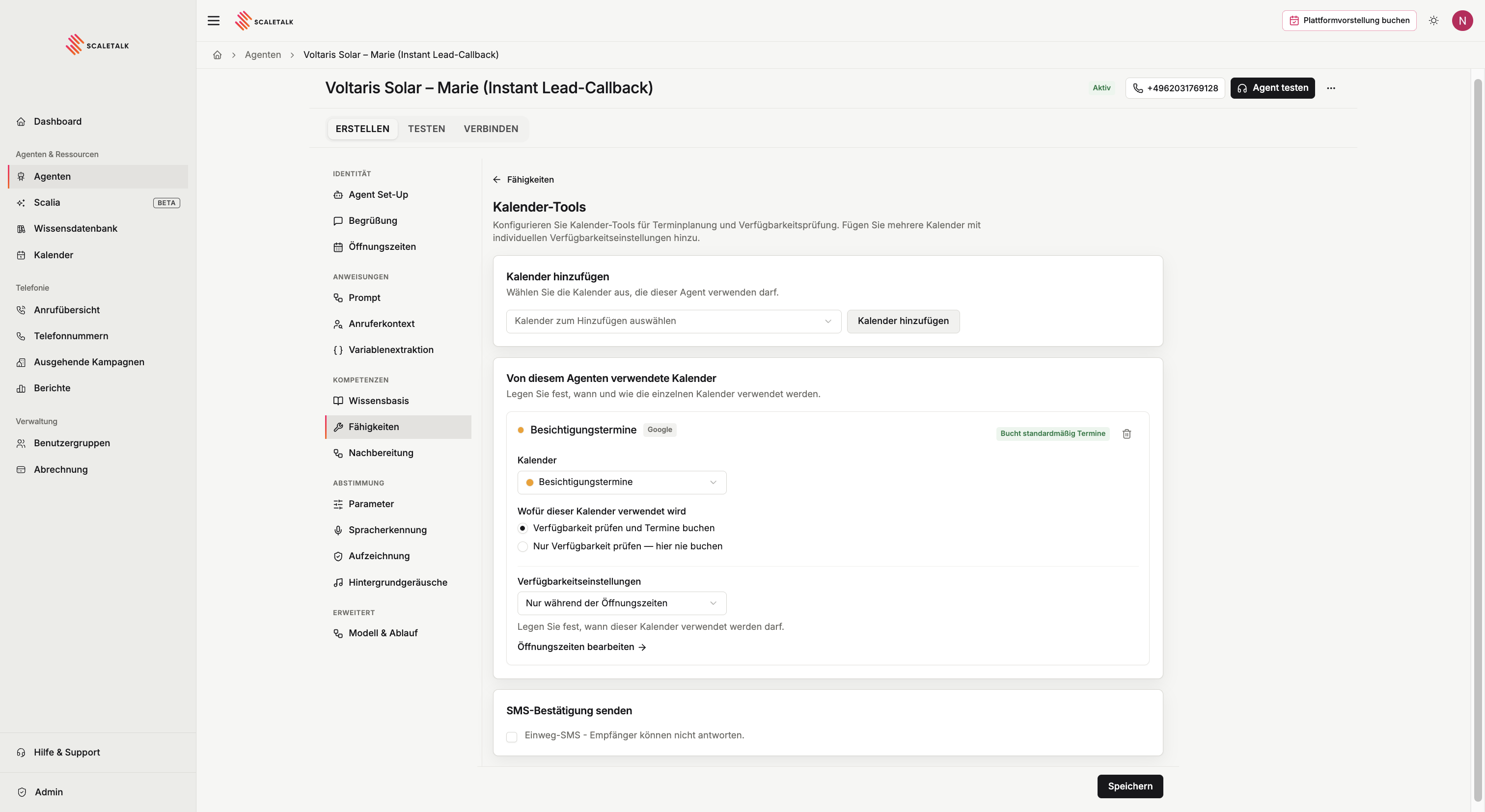
An agent has one calendar tool, holding any number of calendars. The agent checks free/busy across all of them and books into one.
- Open the agent → Capabilities → Tools → + on Calendar tools
- Pick a connected calendar under Add calendar
- Expand its card and set what it is used for
- Save
What this calendar is used for
Every calendar gets a role:
| Role | Meaning |
|---|---|
| Check availability and book appointments | Full access — the calendar can receive bookings |
| Check availability only — never book here | The calendar blocks time but never receives appointments |
The second role is for calendars that only occupy time: a colleague's private calendar, a room calendar, a holiday calendar. Their entries block the slot; the booking lands elsewhere.
The default calendar
Bookings go to the first calendar in the list that accepts them — marked Books appointments by default. Set as default moves it.
Routing keywords
With more than one bookable calendar, keywords decide which one is used. Enter words a caller would use for that kind of appointment:
consultation, first appointment, intro callThe first calendar whose keywords match wins. If nothing matches, the booking goes to the default calendar.
Overlapping keywords route to the wrong calendar
Matching is a substring search. If one calendar has consultation and another has consultation follow-up, the first always wins and the second is never reached. Pick keywords that do not contain one another.
The dialog warns you when the routing cannot work:
| Warning | What it means |
|---|---|
| First calendar cannot be booked | The default is set to availability-only — appointments without a matching keyword fail |
| No calendar accepts bookings | The agent can quote times but write nothing |
| Routing between calendars is ambiguous | Several bookable calendars, no keywords — everything lands in the default |
Availability settings
By default the agent's opening hours apply. Custom availability hours gives this one calendar its own days and time windows — for a colleague who only takes appointments on Tuesdays and Thursdays, say.
The agent then proposes times only inside that window and turns down requests outside it.
SMS confirmation
Optionally ScaleTalk texts the caller the appointment details after booking.
- SMS sender name: what the recipient sees instead of a number. 1–11 characters — letters, digits, spaces,
&,+,-,_, at least one letter. Some countries, including the US and Canada, do not support sender names. - It is a one-way SMS — the caller cannot reply.
- The SMS never blocks the booking: if sending fails, the appointment still stands.
How a booking runs
- The caller names a preferred time
- The agent checks that exact slot — not in the past, inside the availability window, no conflict in the calendar
- The agent confirms it or offers an alternative
- The agent collects the contact details it needs
- The agent writes the appointment and confirms it out loud
The agent accepts dates in all the usual formats — 2026-05-19, 19.05.2026, May 19, 2026. Relative phrasing like "next Tuesday" is resolved against the current date.
Never promise a slot that has not been checked
Put it in the prompt explicitly: check first, promise second. Without that rule the agent tends to offer a time it merely finds plausible.
What belongs in the prompt
The tool configuration covers calendars, roles, routing and hours. Everything about content goes in the system prompt:
- Appointment length — there is no field for it; without instruction the agent books 60 minutes
- Buffer between appointments
- Appointment description — what the calendar entry should say
- When to book and which details the agent needs first
- Which appointment types exist and how long each runs
Buffer time is purely a prompt matter
You will only find a buffer field in the Scalia questionnaire. It has no effect on the conflict check — the agent checks exactly the requested window. For real spacing, write it into the prompt and fold it into the appointment length.
Example prompt
### Booking

Appointments run 30 minutes. Leave at least 15 minutes between
them — so book no earlier than 45 minutes after the previous
appointment starts.

### When the caller wants an appointment:
1. Ask which service it is about.
2. Do NOT ask "when would suit you?". Instead use the calendar
   tools to find the next free slot straight away.
3. Offer exactly one slot and state the price.
4. If the caller says YES:
   - Collect first name, last name and callback number.
   - Write the appointment via the calendar tools.
   - Appointment description: "[Service] – [Name]"
5. If the caller says NO: find the next free slot after that.

Never confirm an appointment you have not checked with the
calendar tools first. Do not invent free slots.
Several appointment types
### Appointment types

- Initial consultation: 60 minutes, free
- Follow-up: 15 minutes
- Treatment: 45 minutes, price depends on the service

Ask what it is about first, then use the calendar tools to find
a matching free slot.
More in the prompting guide.
When it does not work
| Symptom | Cause | Fix |
|---|---|---|
| Agent offers times outside your hours | Hours are only in the prompt, not in the availability settings | Set the hours on the calendar card |
| Agent always books into the wrong calendar | No keywords, or overlapping ones | Give each calendar distinct keywords |
| Booking fails but availability works | The target calendar is set to availability-only | Switch the role to "check availability and book" |
| "No permission to create events" | The calendar is shared read-only | Get write access from the calendar owner |
| Appointments still overlap despite a buffer | Buffer time does not affect the conflict check | Fold the buffer into the appointment length in the prompt |