Uploading Documents
Add documents to your knowledge base via file upload or website crawling.
There are two ways to add content to your Knowledge Base: uploading files directly or crawling a website to import its pages.
Upload Files
The Upload Files tab lets you add documents from your computer.
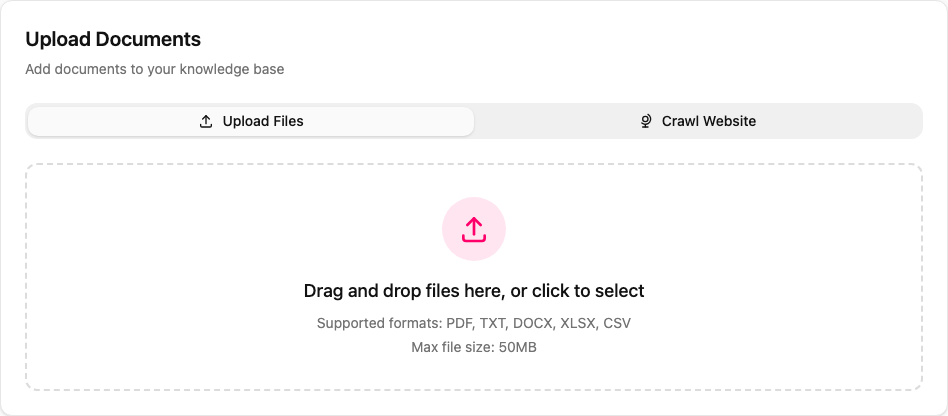
Drag and Drop
- Open the Knowledge Base page from the sidebar
- Drag files from your computer onto the upload area
- The drop zone highlights when files are detected
- Release to add files to the upload queue
File Picker
- Click anywhere in the dashed upload area
- Select one or more files from your computer
- Files appear in the upload queue below the drop zone
Upload Queue
After selecting files, they appear in a list showing file name and size. You can:
- Remove individual files from the queue before uploading
- Upload all queued files at once by clicking the upload button
Supported Formats
Accepted formats: PDF, DOCX, PPTX, PNG, JPG, JPEG, GIF, WEBP, XLSX, XLS, XLSM, XLSB, CSV, TSV, TXT, LOG, INI, CONF, CFG, MD, MARKDOWN, JSON, XML, YAML, YML. Maximum file size is 50 MB per file.
Processing
After upload, each document goes through automatic processing:
| Status | Meaning |
|---|---|
| Pending | File uploaded, waiting to be processed |
| Processing | Text extraction and indexing in progress |
| Ready | Document is indexed and available to agents |
| Failed | Processing encountered an error (hover to see details) |
Processing typically takes a few seconds for text files and up to a minute for large PDFs or images that require OCR.
Crawl Website
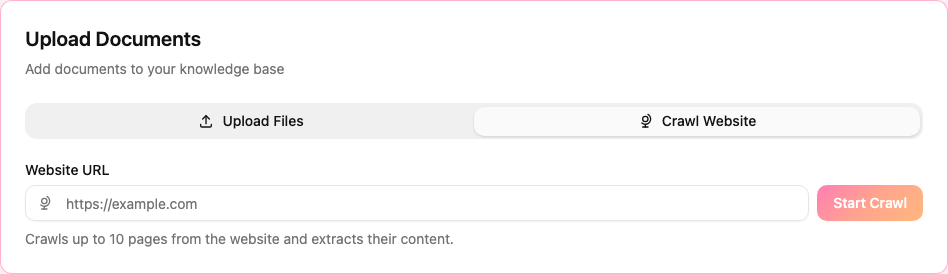
The Crawl Website tab lets you import content directly from a website.
Starting a Crawl
- Switch to the Crawl Website tab
- Enter the website URL (e.g.,
https://example.com) - Click Start Crawl
ScaleTalk crawls up to 10 pages from the website and extracts their text content.
Crawl Progress
While crawling, you see:
- A progress bar showing pages completed vs. total
- The URL currently being crawled
- A Cancel button to stop the crawl
Selecting Pages
After crawling completes, you can review and select which pages to import:
- All pages are selected by default
- Uncheck pages you do not want to import
- Use Select All / Deselect All for bulk selection
- Click the eye icon to preview the extracted markdown content of a page
- Each page shows an estimated token count
Importing Pages
- Review and adjust your page selection
- Click Import Pages to save the selected pages
- Pages are saved as markdown documents in your knowledge base
- They are immediately available to your agents
Tip
Website crawling is useful for importing FAQ pages, help center articles, or product documentation that your agent should reference during calls.
Best Practices
Document Quality
- Use clean, well-formatted documents for best extraction results
- Avoid scanned images with low resolution
- Prefer text-based PDFs over image-only PDFs
Organization
- Use descriptive file names so you can easily identify documents later
- Upload related documents together
- Remove outdated documents to avoid conflicting information
Content Size
- Break very large documents into smaller, topically focused files
- Each chunk is more useful when it covers a single topic
- Smaller documents process faster and produce more relevant search results